Actioning Apple Search Ads
Actioning turns insights into changes you can push straight to Apple Search Ads — no copy‑pasting between Aliveo and the Apple Ads UI. When you ask Aliveo to optimize budgets, bids, statuses, or keywords, it produces an action table: a clear, side‑by‑side preview of current vs proposed values. You review the rows, adjust anything you like, select what you want, and click Apply — Aliveo then sends those changes to Apple on your behalf and reports back which ones succeeded.
This guide covers:
- How action tables work — reviewing and applying changes safely.
- What you can action — budgets, bids, statuses, bidding strategy, dayparting, and keywords.
- Creating actions on the fly with
/actioningin Analytics Chat. - Building repeatable Custom Actioning Workflows for campaign/ad‑group and keyword optimization.
- Example prompts, from simple one‑liners to multi‑step optimization workflows.
Who can action. Actioning is available only for accounts Aliveo manages for you (not read-only connections), and only to users who have permission:
- Primary users can action by default.
- Secondary users can action only once a primary user grants them permission for that account or platform — see Actioning Permissions.
- Read-only users can never action.
Aliveo checks this up front. If you're not eligible for an account, it still analyzes and recommends — but the Apply controls won't appear.
1. The Action Table
Whenever a chat answer or an agent step proposes changes to your account, Aliveo renders them as an action table. This is the single place where you review and apply changes — it looks and behaves the same whether the table came from a chat, a /actioning request, or a scheduled workflow.
Every action table carries the same instruction at the top:
Select rows, adjust the recommended values if needed, and click Apply.
Each row pairs a proposed value with its current value, and you can adjust any proposed value inline before applying. Select the rows you want, and the Apply button reflects how many you've chosen.
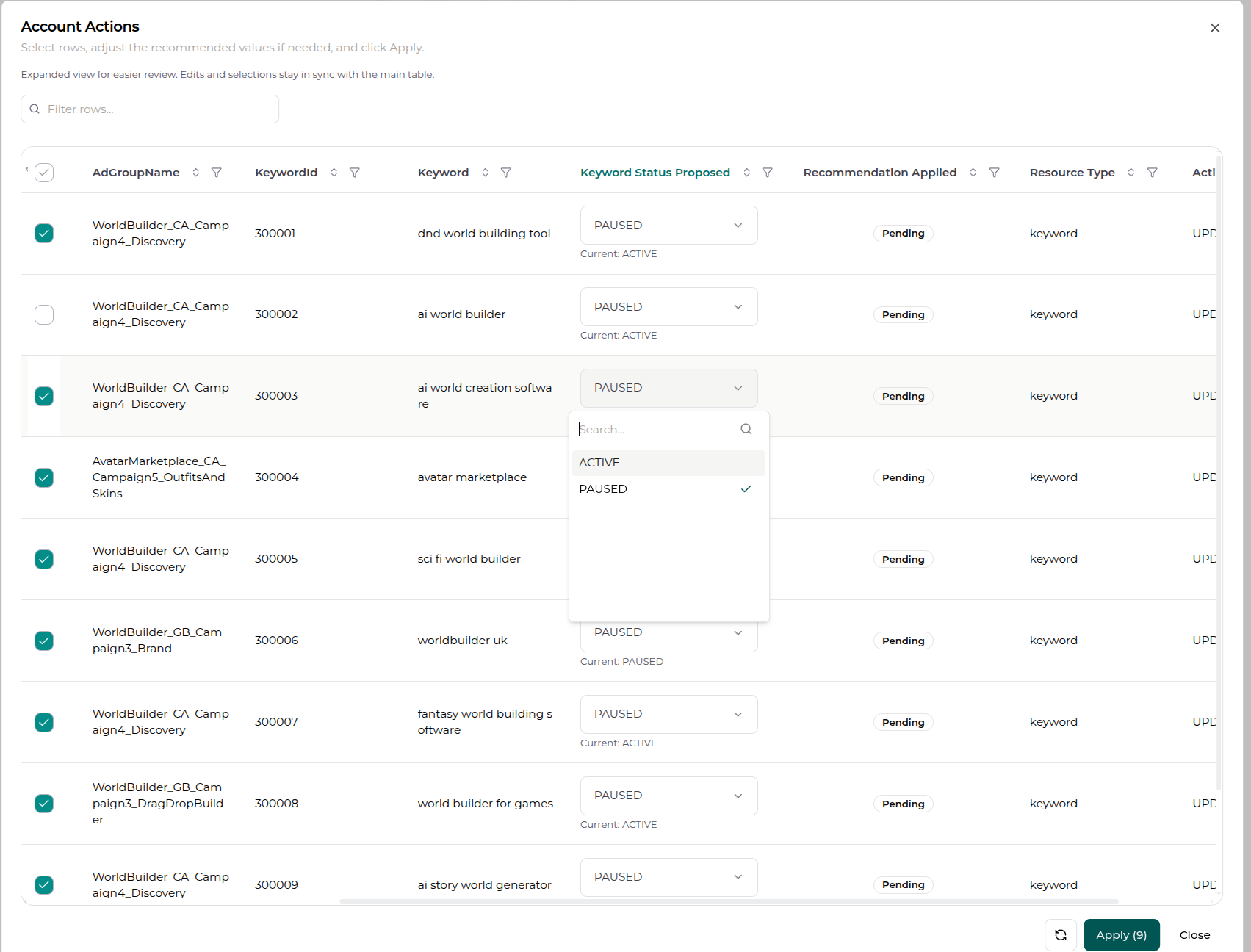
Anatomy of the table
| Element | What it does |
|---|---|
| Row checkboxes | Select exactly which recommendations you want to apply. A header checkbox selects/deselects all eligible rows. |
| Proposed value (editable) | The recommended new value. You can edit it inline before applying — change a bid, round a budget, switch a status, etc. |
| Current value | Shown beneath the proposed value (e.g. Current: 2.50) so you always see what you're changing from. |
| Status badge | Pending until applied, then Applied once the change reaches Apple successfully. |
| Search / filter / sort | Narrow large tables with the Filter rows… box, per‑column filters, and sortable headers — handy when a table has hundreds of keywords. |
Proposed cells adapt to the field type: amounts like bids and budgets use a number input (with valid min/max bounds), while statuses and bidding strategies use a dropdown of allowed values.
Reviewing → applying
- Review each row — compare the proposed value against the current one.
- Adjust any proposed value inline if you'd like something different from what was recommended.
- Select the rows you want with their checkboxes (or use the header checkbox to take everything).
- Click Apply (N) — the number reflects how many rows you've selected. The button stays disabled until at least one row is selected.
- Aliveo validates the changes, pushes them to Apple, and shows the result:
- Actions applied — "Selected recommendations were sent for execution."
- Some actions could not be applied — a few rows failed validation; review them and retry.
- Failed to apply actions — try again, or Refresh the table to reload the latest recommendations.
Applied rows flip to an Applied badge and their checkboxes lock, so you can't double‑apply the same change. You can keep working through the rest of the table, or hit Refresh to pull fresh recommendations against the now‑updated account.
Tip — expand for big tables. Use the maximize button to open the table full‑screen for easier review, and the refresh button to reload recommendations after the account changes.
Built‑in guardrails
Before anything reaches Apple, Aliveo runs each row through safety checks so you don't get cryptic API errors:
- No‑op protection — rows where the proposed value equals the current value are skipped.
- Drift protection — if the account changed since the recommendation was generated (the "current" value no longer matches Apple), the row is held back rather than overwriting newer data.
- Apple rule enforcement — Aliveo pre‑checks Apple's constraints (see Things to know) and rejects rows that would violate them, with a plain‑language reason on the row.
- Change log & restore — every applied change is recorded (what changed, from → to, who, and when) in the Action Log, where you can track its impact and restore most changes with one click.
2. What You Can Action
Aliveo can action the most common day‑to‑day optimizations across the Apple Search Ads hierarchy. Campaigns and ad groups can be updated; keywords and negative keywords can be both created and updated.
Campaigns
| Action | Values |
|---|---|
| Daily budget | Set a new daily spend cap |
| Lifetime budget | Set/raise the lifetime cap (can only increase) |
| Status | ENABLED / PAUSED |
| Bidding strategy | MANUAL_CPT ↔ MAX_CONVERSIONS |
| Target CPA | Cost‑per‑acquisition goal (used with MAX_CONVERSIONS) |
Ad Groups
| Action | Values |
|---|---|
| Default bid | Set the ad group's default bid |
| Status | ENABLED / PAUSED |
| CPA goal | Set a cost‑per‑acquisition goal |
| Dayparting | Restrict the ad group to specific hours and days of the week — or DISABLED to serve around the clock |
Keywords
| Action | Values |
|---|---|
| Bid | Set a keyword‑level bid |
| Status | ACTIVE / PAUSED |
| Create keyword | Add new targeting keywords to an ad group — match type EXACT or BROAD (defaults to EXACT) |
Negative Keywords
| Action | Level | Values |
|---|---|---|
| Create negative keyword | Campaign or ad group | Match type EXACT or BROAD (defaults to EXACT) |
| Pause / re‑activate | Campaign or ad group | ACTIVE / PAUSED |
Note: Out of the box, actioning updates existing campaigns and ad groups and creates keywords and negatives within them. Looking to create campaigns or ad groups from Aliveo too? Talk to us — we can set this up as part of a custom workflow for your account.
3. /actioning in Analytics Chat
The fastest way to make a one‑off change is right inside a chat. Type / in the chat input to open the mode menu, then pick actioning.
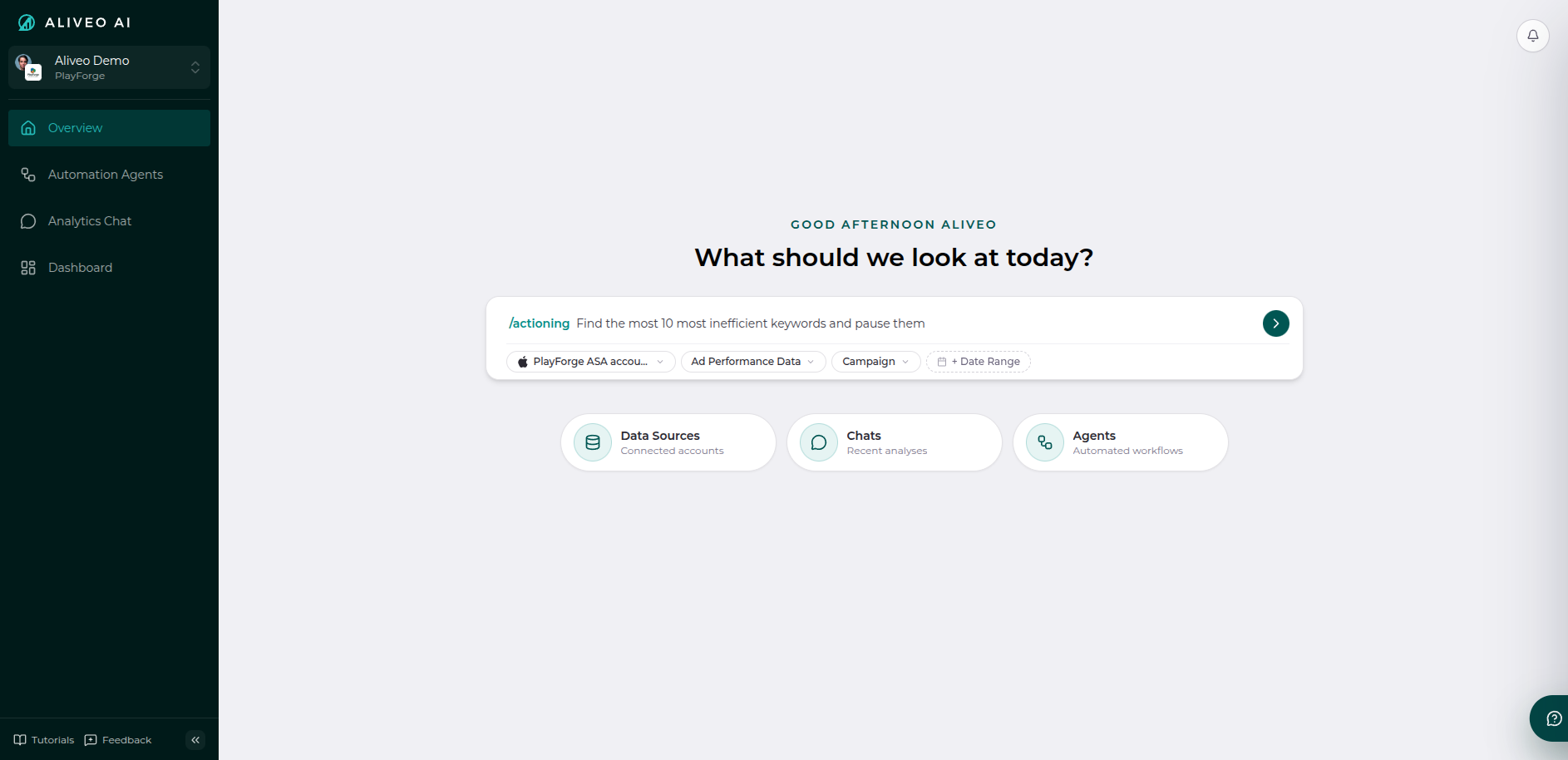
Selecting actioning tells Aliveo you want to change the account, not just analyze it. It then makes the actioning tools available so your request comes back as a ready‑to‑apply action table instead of a plain answer.
You don't always have to type /actioning — Aliveo also recognizes actioning intent from phrasing like "pause…", "reduce the daily budget…", "increase the bid…", "switch to max conversions…", or "add … as a negative keyword." Using the slash command simply makes your intent explicit.
Things you can say in actioning mode:
- "Pause all keywords with zero installs and more than $50 spend in the last 30 days."
- "Reduce the daily budget by 20% for my two highest‑CPA campaigns."
- "Add
competitor brandas a campaign‑level negative exact keyword." - "Increase the bid by 15% on the top 5 keywords by conversion rate."
Aliveo finds the relevant entities, builds the action table, and hands it to you to review and apply.
The other chat modes, for reference: info (answer from context without running analysis), brainstorming (strategy and market exploration), web_search (pull in live external info), and create_agent (draft an automation agent). Only actioning produces apply‑ready action tables.
4. Custom Actioning Workflows
For optimizations you want to run repeatedly — or assemble as a multi‑step routine — use a Custom Actioning Workflow agent instead of a one‑off chat. These are blank‑slate agent templates pre‑wired for actioning: you describe the analysis and the change, and the workflow produces an action table each time it runs.
You'll find them in the agent creation flow under Step 2: Template Selection (look in the Optimization Agents group):
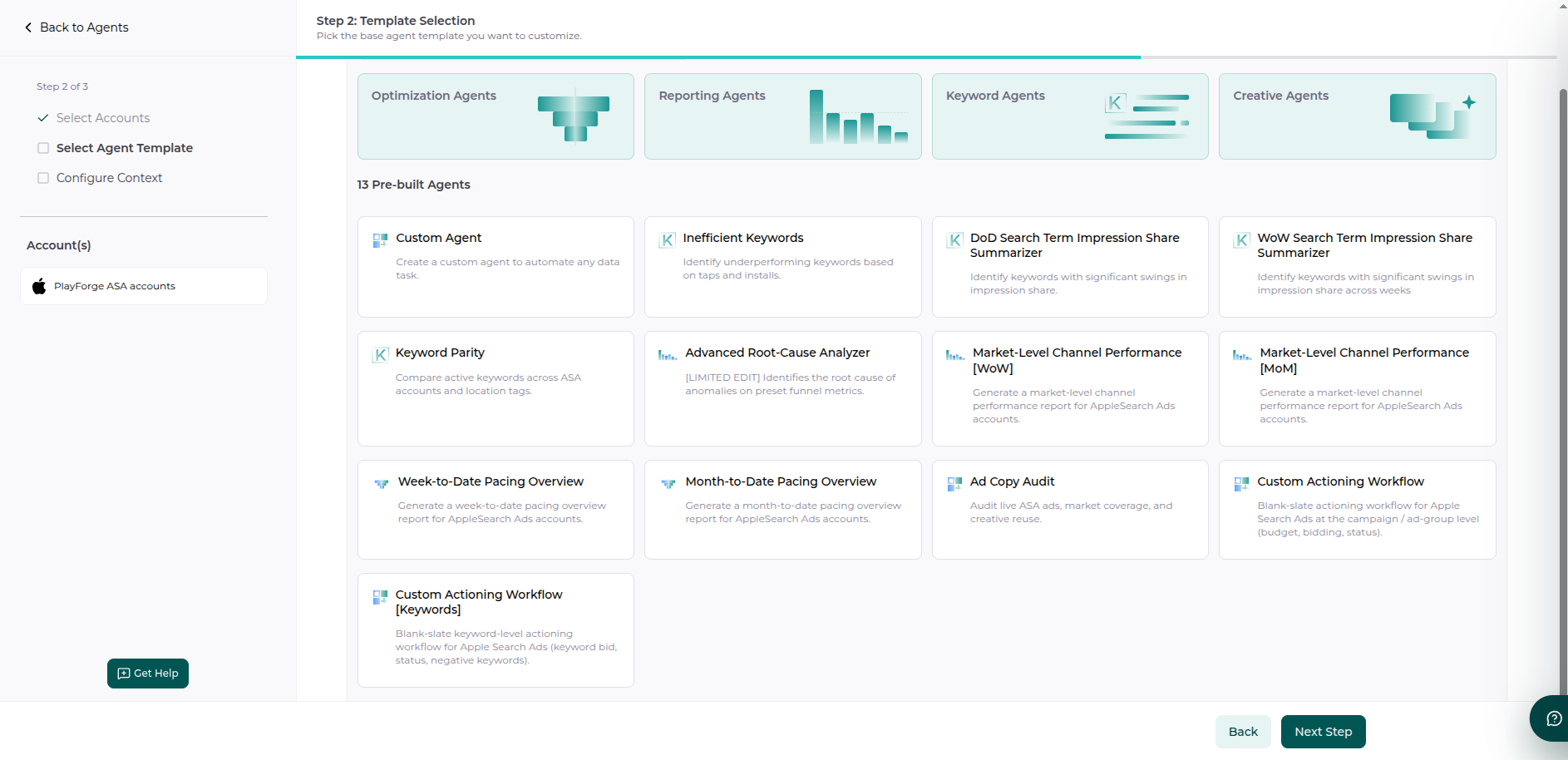
There are two, depending on what you want to action:
Custom Actioning Workflow (Campaign / Ad‑Group)
Blank‑slate actioning workflow for Apple Search Ads at the campaign / ad‑group level (budget, bidding, status).
- Use it for: daily/lifetime budgets, bidding strategy (manual ↔ max conversions), target CPA / CPA goal, ad‑group dayparting schedules, and pausing/enabling campaigns and ad groups.
- Set up with: Ad Performance data.
Custom Actioning Workflow [Keywords]
Blank‑slate keyword‑level actioning workflow for Apple Search Ads (keyword bid, status, negative keywords).
- Use it for: keyword bids, keyword status (pause/activate), and negative keyword management.
- Set up with: Keyword data.
How to build one
Both templates drop you into the workflow playground with the actioning tools already switched on, so you assemble the steps yourself:
- Shared Context — define anything common across steps (definitions, thresholds, the time window, e.g. "use the last 30 days").
- Analyze steps — do the data work: pull performance, compute metrics like CPA/CPI/conversion rate, rank entities, and produce the proposed changes as an action table.
- Summary step — (optional, always last) logically summarize the combined output of the analyze steps.
Because these are actioning workflows, the analyze step that proposes changes renders an action table in the workflow output — you still review and Apply exactly as you would in chat. (Custom Actioning Workflows are set up as one‑off agents so you stay in control of when changes are proposed.)
For the general agent‑building mechanics — accounts, data context, grouping, steps, preview, and scheduling — see Creating an Agent.
5. Examples — From Simple to Complex
Every example below is a single natural‑language request. Aliveo handles the analysis (finding the entities, computing the metric, ranking) and produces the action table — you review and apply.
Simple, single‑step actions
These map directly to one type of change:
- Budget — "Set a lifetime budget of $5,000 for the top 2 campaigns by installs."
- Status — "Identify the top 2 ad groups with the highest spend and pause those ad groups."
- Bid — "Find the top 2 keywords with CPI above $10 and reduce their bid by 25%."
- Negative keyword (create) — "Add
competitor brandas a campaign‑level negative exact match keyword." - Negative keyword (status) — "Pause the 3 campaign negative keywords that contain
old brandacross all campaigns."
Metric‑driven optimizations
These combine an analysis with a change — Aliveo computes the metric, ranks, filters, then proposes the action:
- CPA budget trim — "Find the 2 campaigns with the highest CPA and reduce their daily budget by 20%."
- Wasted‑spend cleanup — "Identify 3 keywords with zero installs and spend above $50 in the last 30 days, and pause those keywords."
- Bid efficiency — "For the top 2 ad groups by CPI, reduce the bid by 15%."
Keyword discovery → action
These turn search‑term analysis into keyword changes:
- Harvest winners — "Identify the top 2 search terms by installs and add those keywords as exact match keywords."
- Block losers — "Identify the bottom 3 search terms by conversion rate and add those keywords as negative exact match in their ad groups."
Dayparting
Shape when an ad group serves instead of pausing it outright:
- Business hours only — "Restrict the ad groups in my Brand campaign to weekdays 9am–6pm."
- Weekend push — "Run the
Promoad group on weekends only, 8am–10pm." - Back to always‑on — "Remove the dayparting schedule from the
Promoad group."
Bidding‑strategy automation
- Go automated — "Switch the top 2 campaigns by spend to MAX_CONVERSIONS with a $12 target CPA."
- Go manual — "Switch campaigns with CPI above $15 back to manual bidding."
- Tune goals — "Set a CPA goal of $8 for the top 3 ad groups by installs" / "Increase the target CPA to $15 for campaigns spending more than $1,000."
Multi‑step workflows you can assemble
In a Custom Actioning Workflow, you can chain several of the above into one routine. A few patterns that work well:
- Weekly keyword hygiene (Keywords template) — (1) Analyze: find zero‑install, high‑spend keywords → pause them. (2) Analyze: find high‑converting search terms → add them as exact‑match keywords. (3) Analyze: find irrelevant search terms → add them as ad‑group negatives. (4) Summarize what changed.
- Budget & bidding reallocation (Campaign template) — (1) Analyze: rank campaigns by CPA, trim daily budget on the worst performers. (2) Analyze: rank by efficiency and ROAS, raise budgets on the best. (3) Analyze: move consistently efficient campaigns to
MAX_CONVERSIONSwith a target CPA. (4) Summarize. - CPI guardrail (Campaign + Keyword) — flag entities breaching a CPI threshold and propose bid reductions or pauses across both ad groups and keywords.
Each analyze step produces its own action table, so you can review and apply each set of changes independently.
Advanced, tailored workflows
Beyond the self‑serve patterns above, we build custom actioning workflows tuned to your account's strategy and scale. If any of these sound like what you need, talk to us and we'll set them up for you:
- Sophisticated bid & budget management — rule‑based and goal‑seeking bid/budget logic that reacts to efficiency, ROAS, and conversion trends rather than simple top‑N rules.
- Pacing — keep daily/lifetime spend on track to budget targets across the period, with proposed budget adjustments when an account is over‑ or under‑pacing.
- Keyword deduping — detect duplicate or overlapping keywords competing across campaigns and ad groups, and consolidate them so you stop bidding against yourself.
- Account structuring — organize keywords into a clean, intentional structure (e.g. discovery vs. brand vs. competitor, by match type), proposing the moves and negatives needed to get there.
These run as the same review‑and‑apply action tables, so even sophisticated logic stays fully under your control — nothing changes until you click Apply.
6. Things to Know — Apple's Rules
Aliveo enforces Apple Search Ads' own constraints up front, so invalid rows are caught before they're sent. If you see a row rejected with a reason, it's usually one of these:
Budgets
- Lifetime budget can only increase — you can't lower a campaign's lifetime budget, and you can't add one to a campaign that didn't have it set at creation.
- Daily budget must be ≥ the highest ad‑group default bid in that campaign.
- Daily budget must be less than the lifetime budget (when both are set).
Bidding strategy & goals
MAX_CONVERSIONSrequires a target CPA (provide one in the same change, or have it already set) and only works on App Store search results campaigns.- CPA goal is for App Store search results ad groups only — not on
MAX_CONVERSIONScampaigns and not on automated ad groups. - Bids can't be changed on
MAX_CONVERSIONScampaigns — Apple manages bids automatically there.
Dayparting
- Schedules are weekly, in whole hours — you pick the days and hour ranges the ad group may serve (e.g. weekdays 9–18); the same schedule repeats every week.
- A schedule can't be empty — an ad group must serve at least one hour. To pause it, change its status instead; to run around the clock again, ask for the dayparting to be removed/disabled.
Keywords
- Targeting keywords are only supported on App Store search results campaigns, and can't be added to automated ad groups (those manage their own keywords).
- Negative keywords are more flexible — they can be added to automated ad groups and across supply sources.
These guardrails mean you can safely propose broad changes; Aliveo simply skips the rows Apple wouldn't accept and tells you why.
That's actioning — analyze, review, and apply Apple Search Ads changes without leaving Aliveo. Start with a quick /actioning request in chat, and graduate to a Custom Actioning Workflow once you find an optimization worth repeating.