Managing Chats
Every chat you start is saved to your history. From the chat sidebar you can reopen, rename, share, or delete any past chat.
Finding Your Past Chats
Every analysis you run is saved and easy to get back to:
- From the Analytics Chat sidebar — your recent chats are listed on the left; click any chat (or New Chat) to open the chat page.
- From the Past Analysis list — your chats shown in a sortable table (date, accounts, context, and title) with quick edit, share, and delete actions on each row.
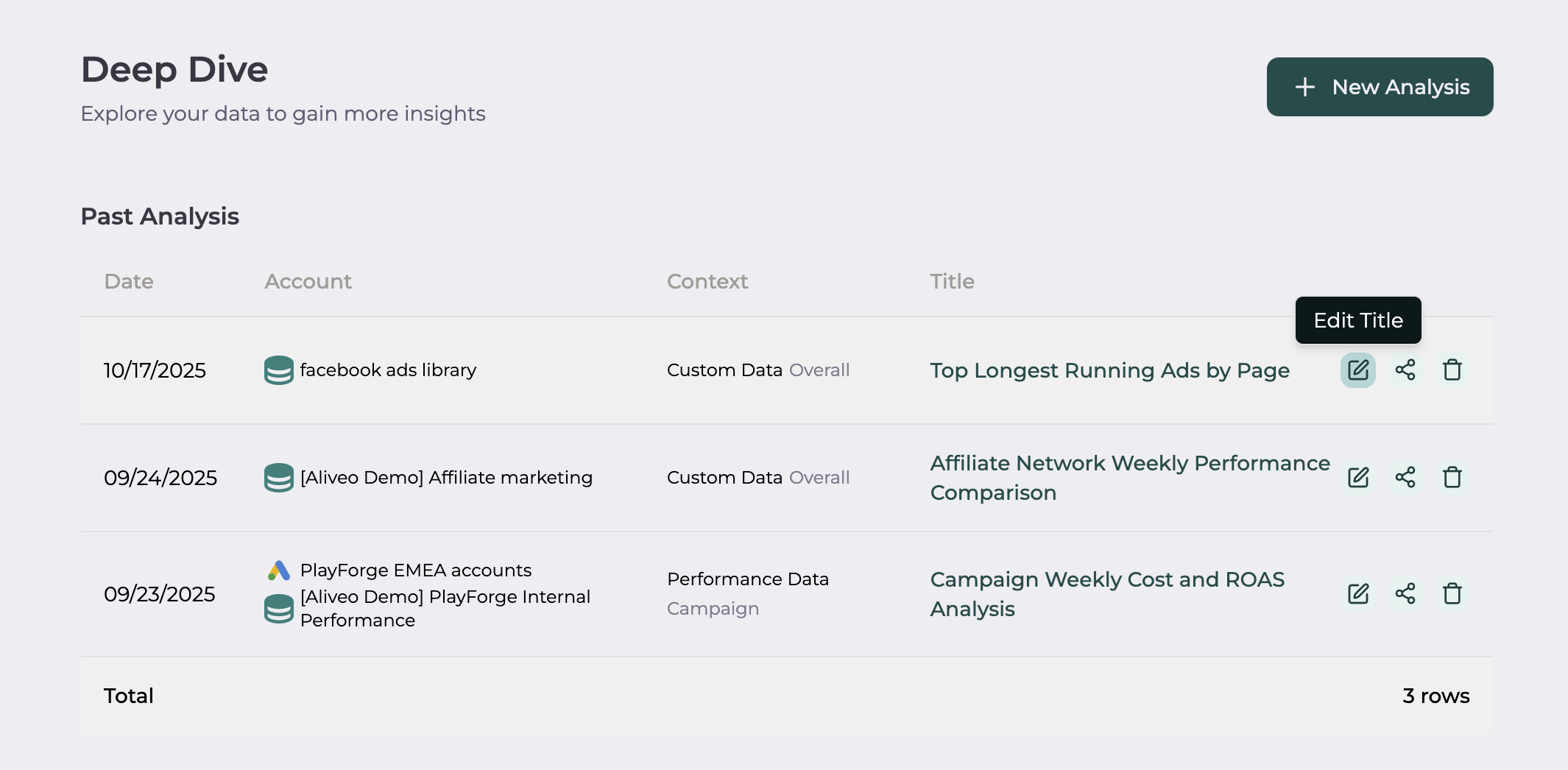
The Chat Menu
Open Analytics Chat and find the chat in the left sidebar (use Search chats… to filter). Click the ⋮ (more) button on a chat to see its actions:
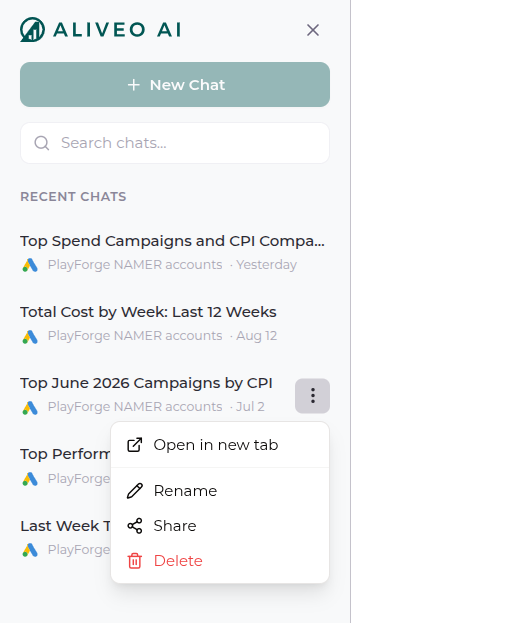
- Open in new tab — open the chat in a separate browser tab, handy for comparing two analyses side by side.
- Rename — give the chat a clearer title.
- Share — share the chat with your teammates.
- Delete — remove the chat permanently.
Each chat in the list also shows the accounts it was scoped to (e.g. PlayForge NAMER accounts) and when it was last updated, so it's easy to find the right one.
Renaming a Chat
Click ⋮ → Rename and type a new title. Descriptive names—e.g. "Q3 Revenue Deep Dive" or "Google vs Facebook ROAS"—make chats easy to find later.
Renaming chats helps you identify analyses without reopening them.
Sharing a Chat
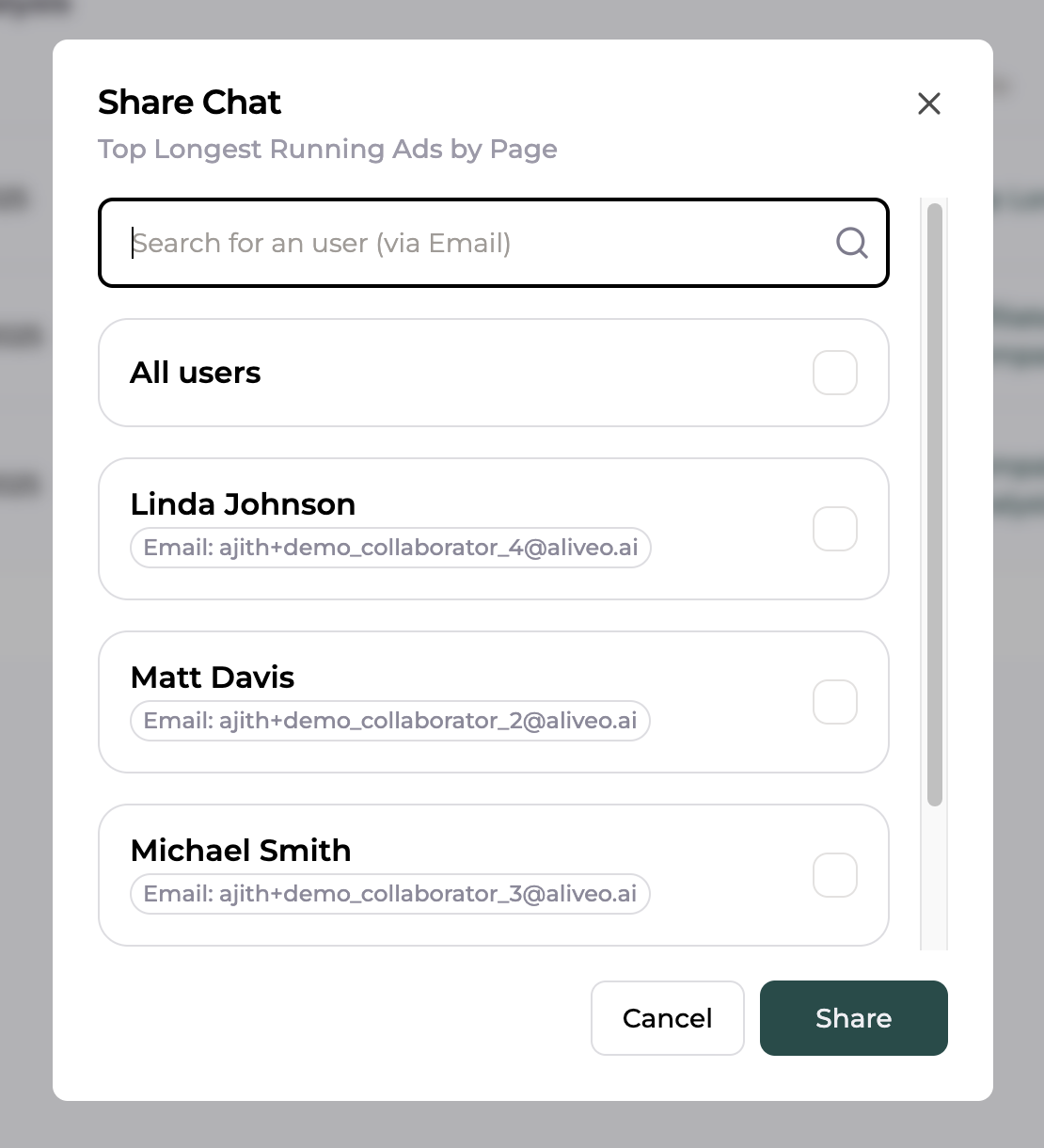
Click ⋮ → Share to open the Share dialog. Search for a teammate by email, or choose All users to share with everyone, then click Share. Anyone you share with can open the same chat, view the insights, and continue the analysis from where you left off.
Deleting a Chat
Click ⋮ → Delete and confirm.
Deleted chats can't be recovered, so make sure you no longer need the insights before deleting.
Changing a Chat's Context
A chat isn't locked to the scope it started with. The context chips above the message box—accounts, data context, grouping, and date range—stay editable for the whole conversation, so you can switch accounts or adjust the date range mid-chat. See Starting a Chat for how the context chips work.
Best Practices
- Keep titles meaningful — helps with search and organization.
- Share strategically — collaborate with teammates working on similar analyses.
- Clean up regularly — delete outdated or redundant chats to keep your history tidy.
That's it — managing your chats is as simple as that!