Starting a New Analytics Chat
Analytics Chat is where you explore your data conversationally. Starting one is quick—pick your accounts, ask in plain English, and refine as you go. There's no rigid setup wizard: you can just start typing, and Aliveo will fill in sensible defaults.
1. Open the Analytics Chat Page
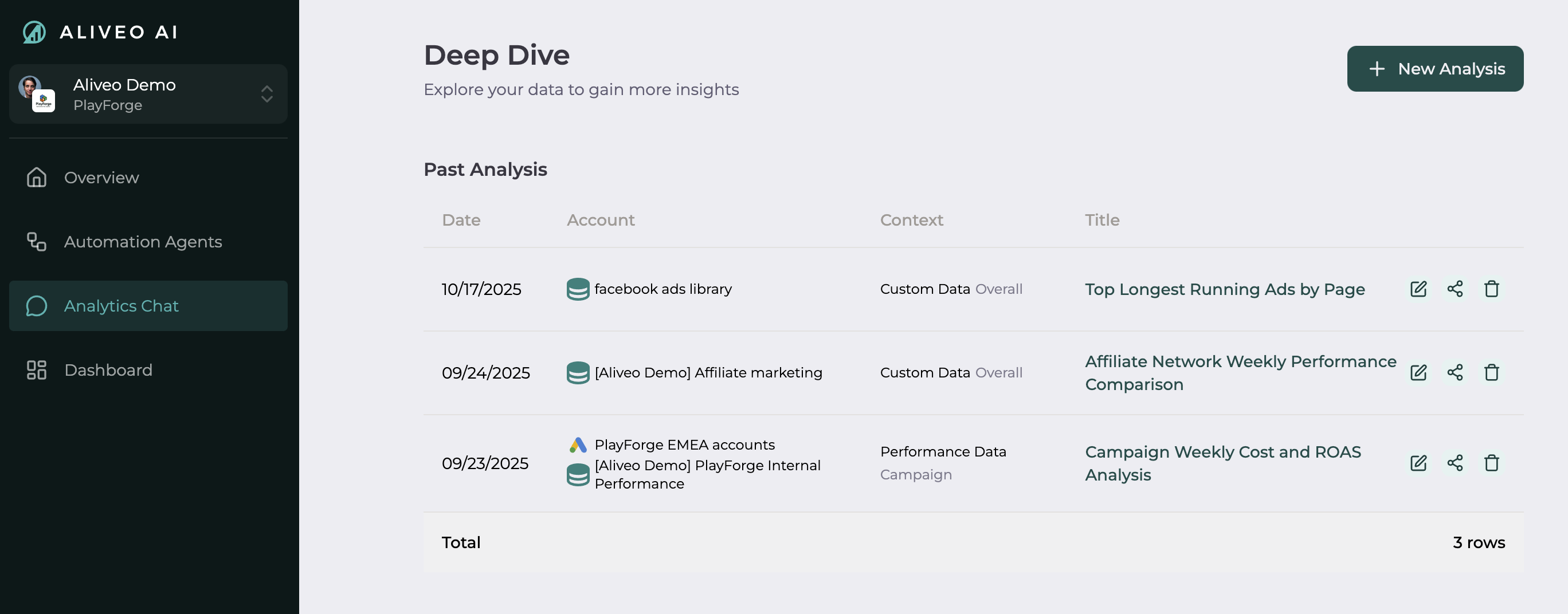
- Click Analytics Chat in the left-hand navigation bar.
- Click New Chat at the top of the chat sidebar to begin.
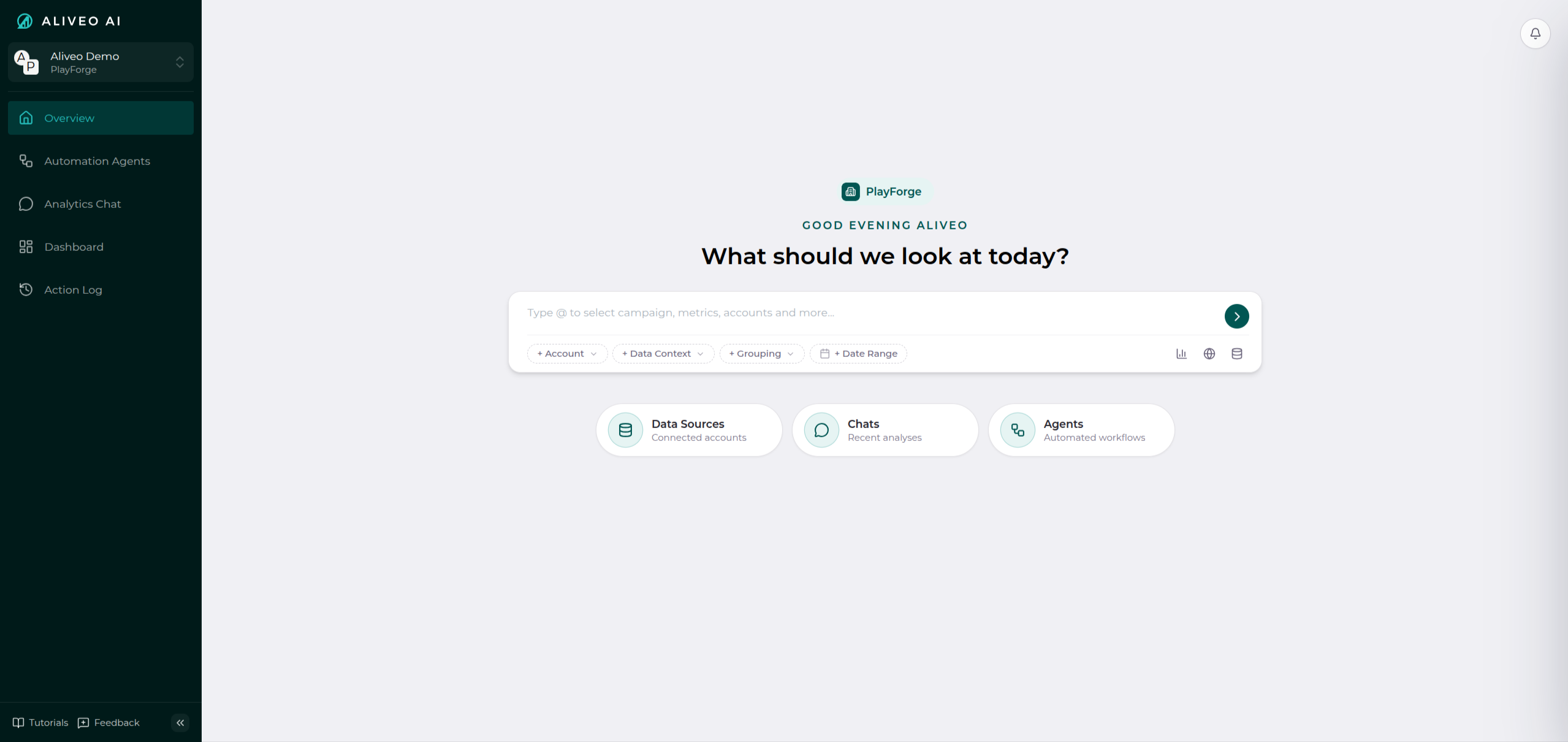
Shortcut from the Overview page. You can also start a chat straight from your Overview—type your question into the "What should we look at today?" box and set any context chips right there.
2. The Chat Screen
A new chat opens with a few suggested questions to get you going, a New Chat button and searchable history in the left sidebar, and a message box at the bottom with context chips just above it.
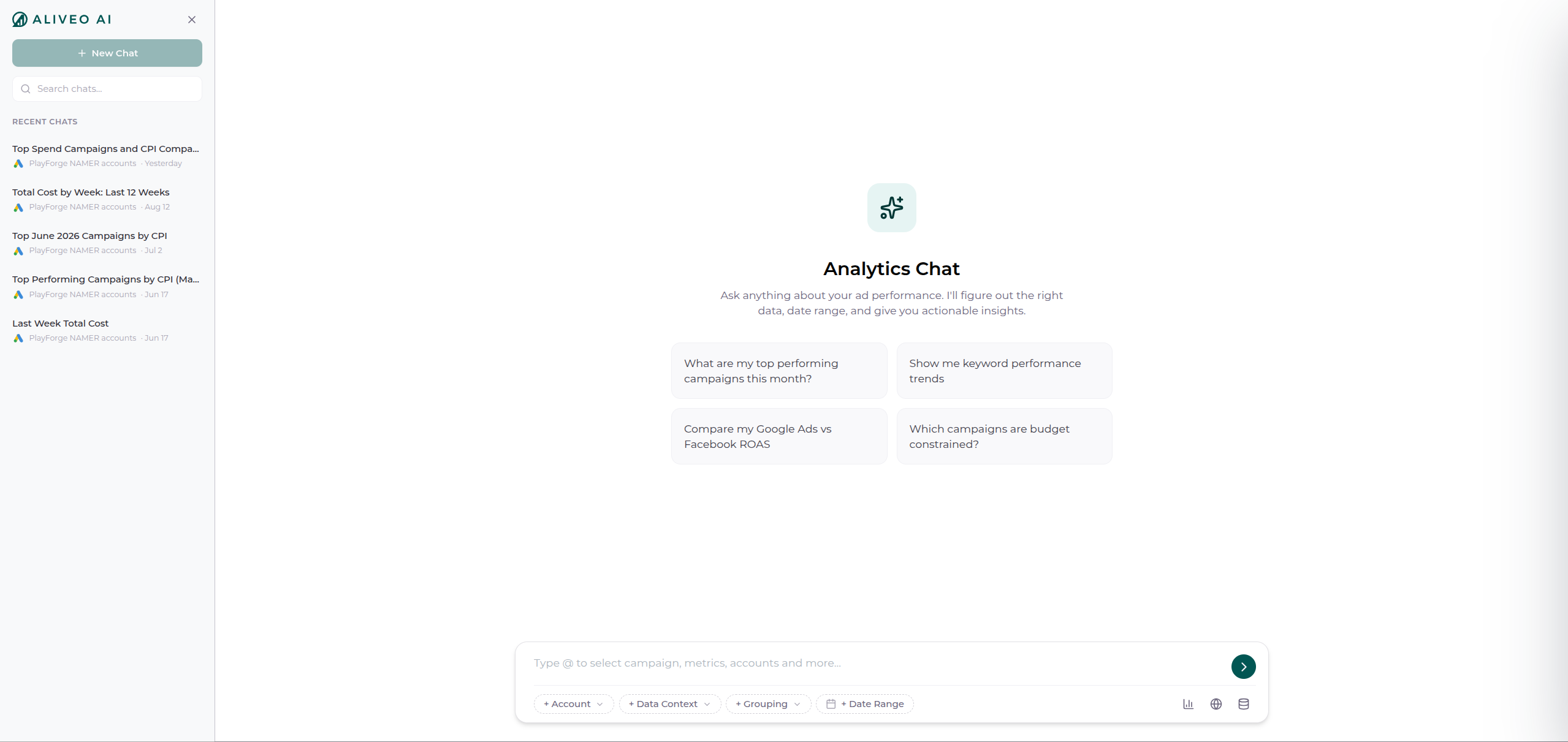
You don't have to configure anything before you start—just type a question and send. The context chips are there for when you want to be explicit about scope.
3. Set Your Context (Optional)
Just above the message box you'll see four chips. Use them to tell Aliveo exactly what to analyze:
- + Account — pick one account or several, even across different platforms. The picker is a checklist, so a single chat can combine multiple accounts and account types at once.
- + Data Context — the analytical lens, such as Ad Performance, Keyword, or Landing Pages. Only the contexts that are feasible for your selected accounts appear.
- + Grouping — the granularity: Campaign, Ad Group, or Ad.
- + Date Range — the period to analyze.
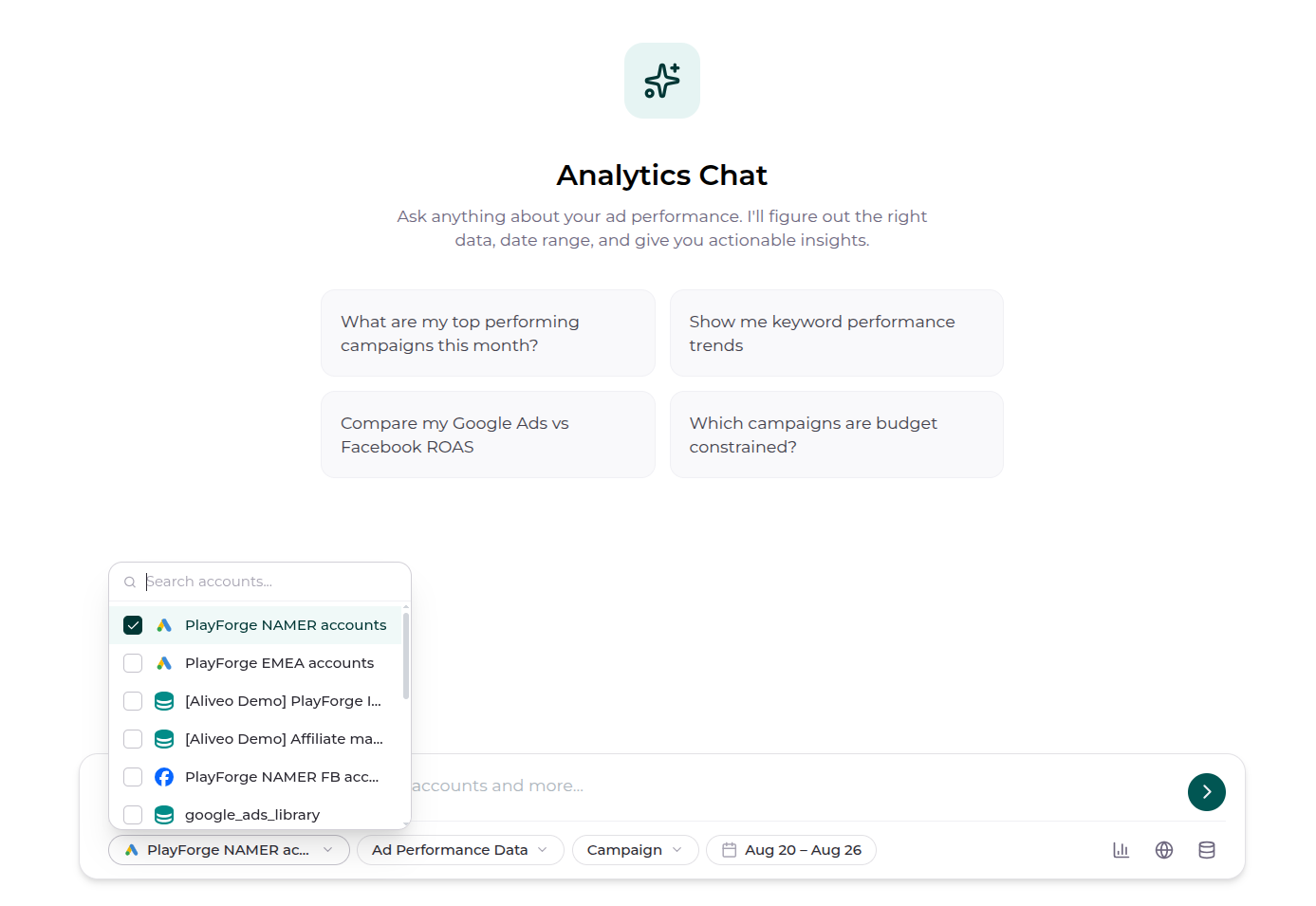
Mix platforms in one chat. Because accounts are multi-select, a single conversation can span different account types together—for example Google Ads + Facebook + Apple Search Ads—so you can analyze and compare across platforms side by side.
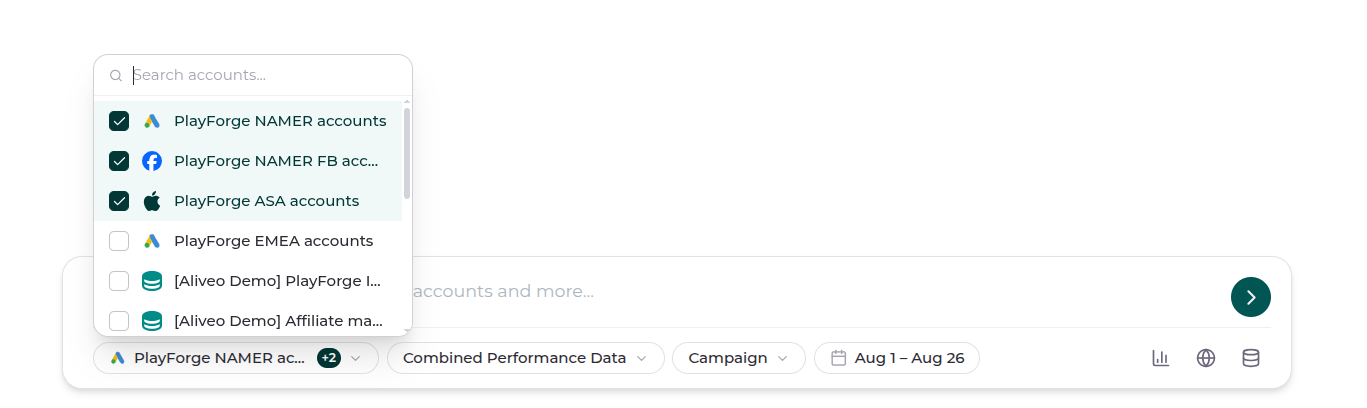
As soon as you choose accounts, Aliveo fills in a sensible Data Context, Grouping, and Date Range for you—shown right on the chips. Change any of them with a click.
You can also set context inline as you type: use
@in the message box to mention an account, metric, or saved context.
4. Ask Your Question
Type your question in plain English and send. You don't need to name the exact KPI or list the campaigns—Aliveo uses your context and business knowledge to interpret what you mean, and asks a quick clarifying question if anything is ambiguous.
Try things like:
- "What are my top performing campaigns this month?"
- "Compare my Google Ads vs Facebook ROAS."
- "Which campaigns are budget constrained?"
5. Change Context Anytime
The context chips stay above the input for the whole conversation, so you're never locked into your first choice. Switch accounts, change the data context, or adjust the date range mid-chat—Aliveo picks up the new scope for your next question and marks where the context changed, so your history stays easy to follow.
That's what makes a single chat flexible: start on one account, pivot to another, and compare across several without ever leaving the conversation.
6. Keep Exploring
Ask follow-ups, drill into anomalies, or pivot to a new angle. Aliveo tracks context across messages and suggests next questions to help you go deeper.
That's it—you're set to explore your data conversationally.