Getting Started with Automation Agents
Automation Agents are your smart assistants for analytics and reporting. They follow your instructions, run analyses, and deliver insights—on autopilot. Here’s how to set up your first agent and unlock effortless automation.
1. Open the Automation Agents Tab
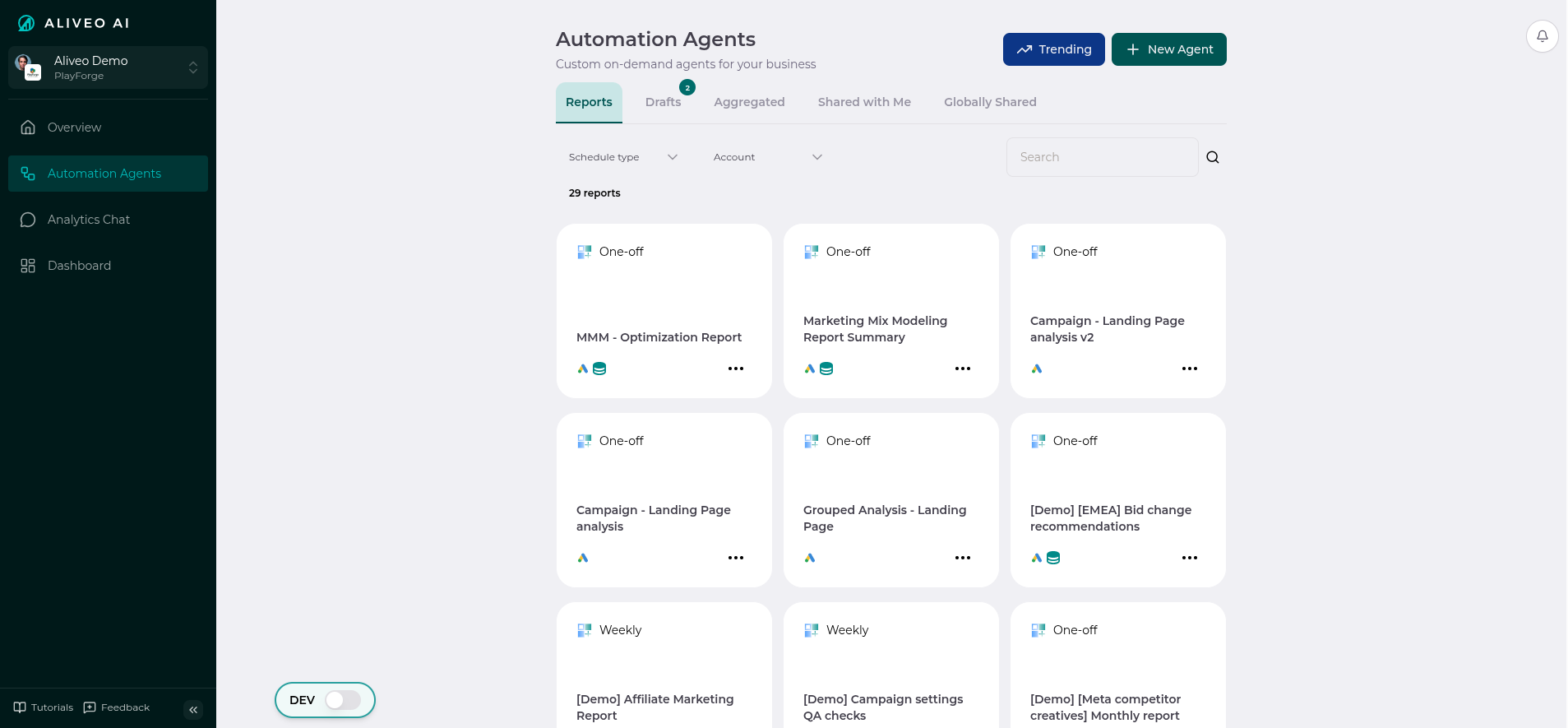
- Click on Automation Agents in the left navigation bar to access your agent dashboard.
- Here, you’ll see all your agents.
- Select any agent to access their date-wise report.
2. Create a New Automation Agent
- Hit Create Agent to launch a new automation.
- You can also duplicate an existing agent or start from a template for popular use cases.
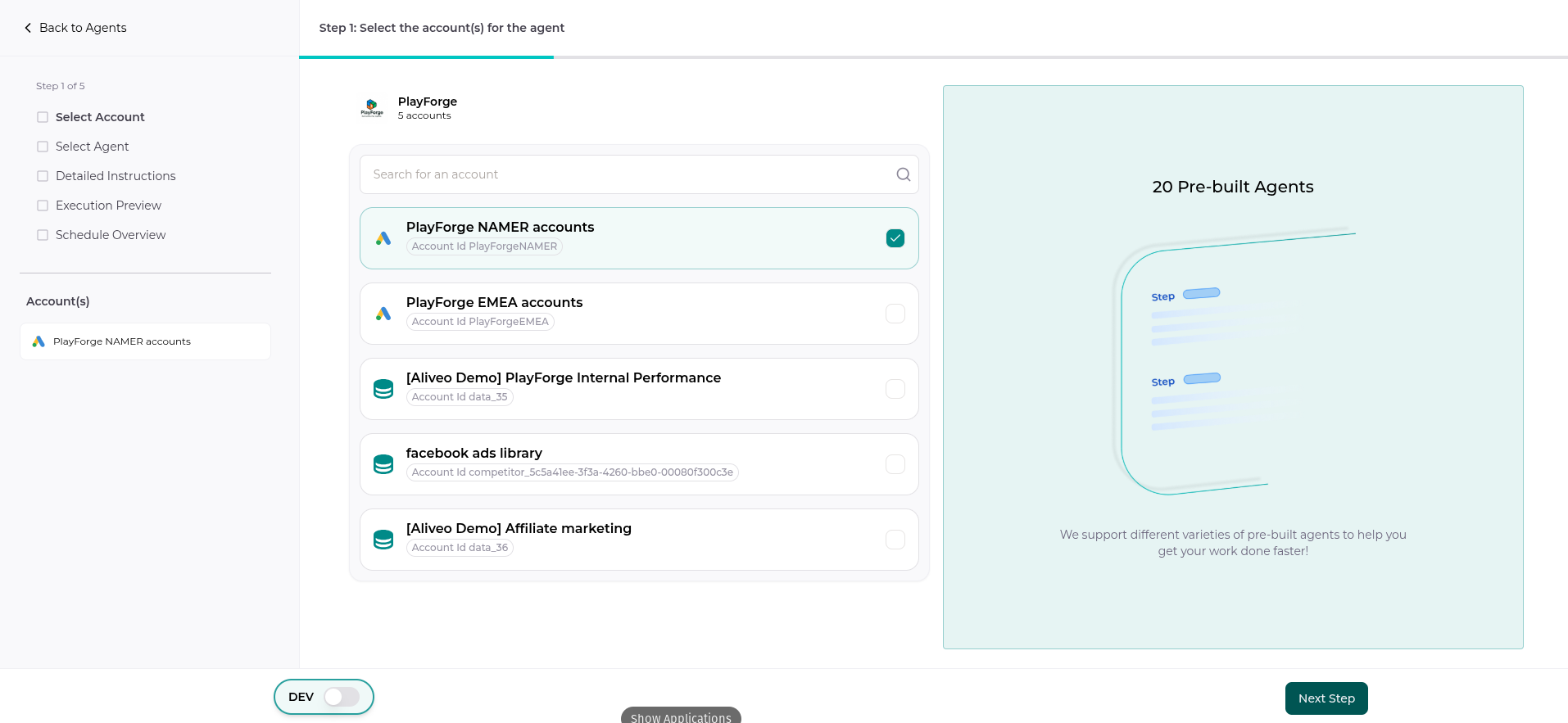
3. Select Account(s)
- Choose the account(s) your agent will work on. The available templates and data contexts will update based on your selection.
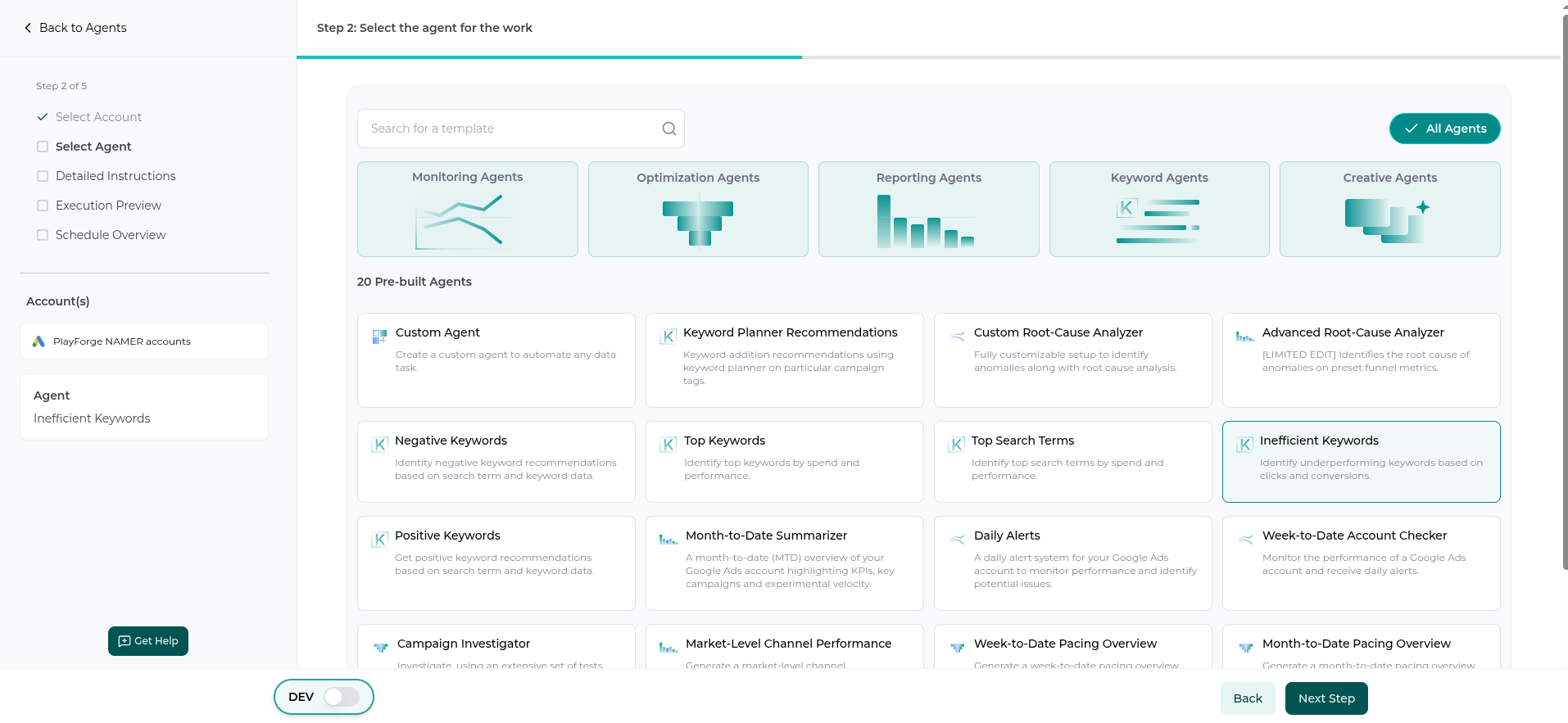
4. Choose a Template
- Pick a template to quickly set up your agent, or start from scratch for full customization.
- To explore available templates, refer to Agent Library.
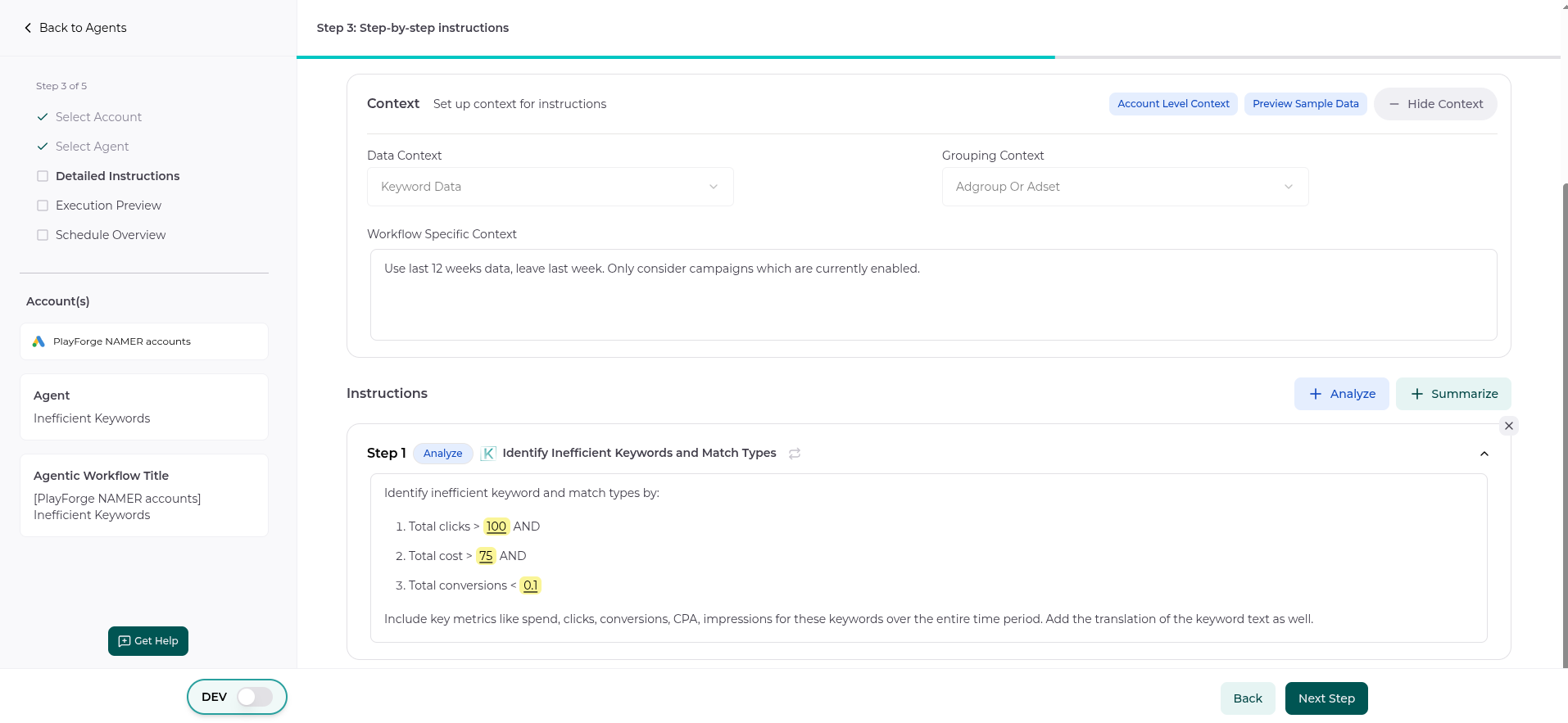
5. Configure Agent Details
This is where you set your agent’s mission:
Data Context
- Pick the main lens for analysis (e.g., Keywords, Ad Performance).
Grouping Context
- Decide how your agent should group the data (e.g., Campaign, Ad Group).
Agent Context
- Add any general instructions or assumptions for your agent (e.g., "Use last 12 weeks of data").
- This layers on top of your Account, Org, and Global context. See The Context System for how levels stack together.
Steps
- Add, edit, or remove steps. Each step is either an Analyze or Summarize action:
- Analyze: Your agent runs a specific analysis or data operation based on your instructions.
- Summarize: Your agent gathers and summarizes results from previous Analyze steps. If included, Summarize is always the last step.
- Use templates for common analyses, or write your own instructions.
- Tweak criteria and logic to match your goals.
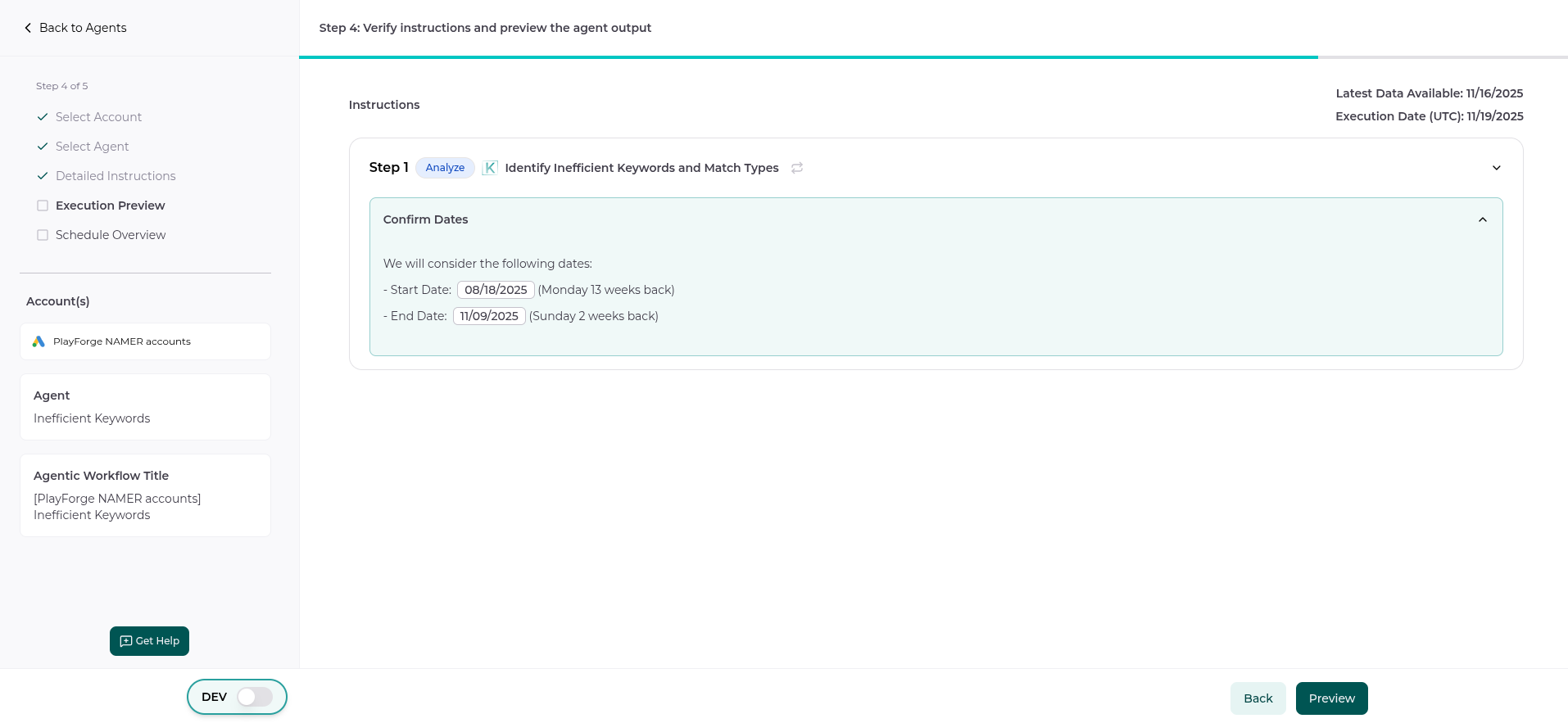
6. Preview Dates
- Set the date range for your agent’s analysis. Dates can be relative (e.g., "last 12 weeks") so your agent always works with the freshest data.
- Preview how the start and end dates will be calculated for each run.
7. Preview Agent Report
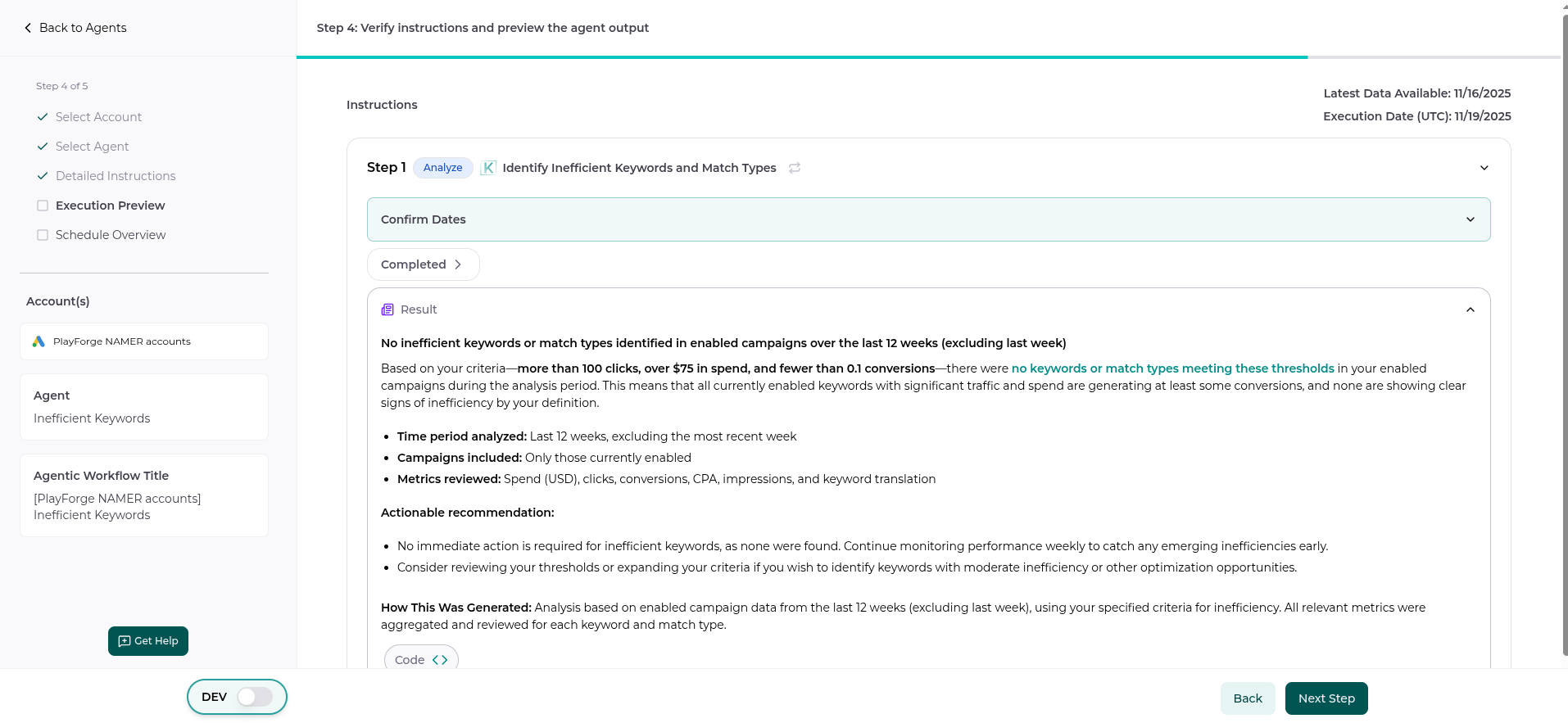
- Before saving, preview the output your agent will deliver.
- This helps you confirm your instructions and criteria are set up just right. Click Back to make any adjustments.
- Depending on complexity and data size, previewing may take a few moments.
8. Set Scheduling Preferences & Save
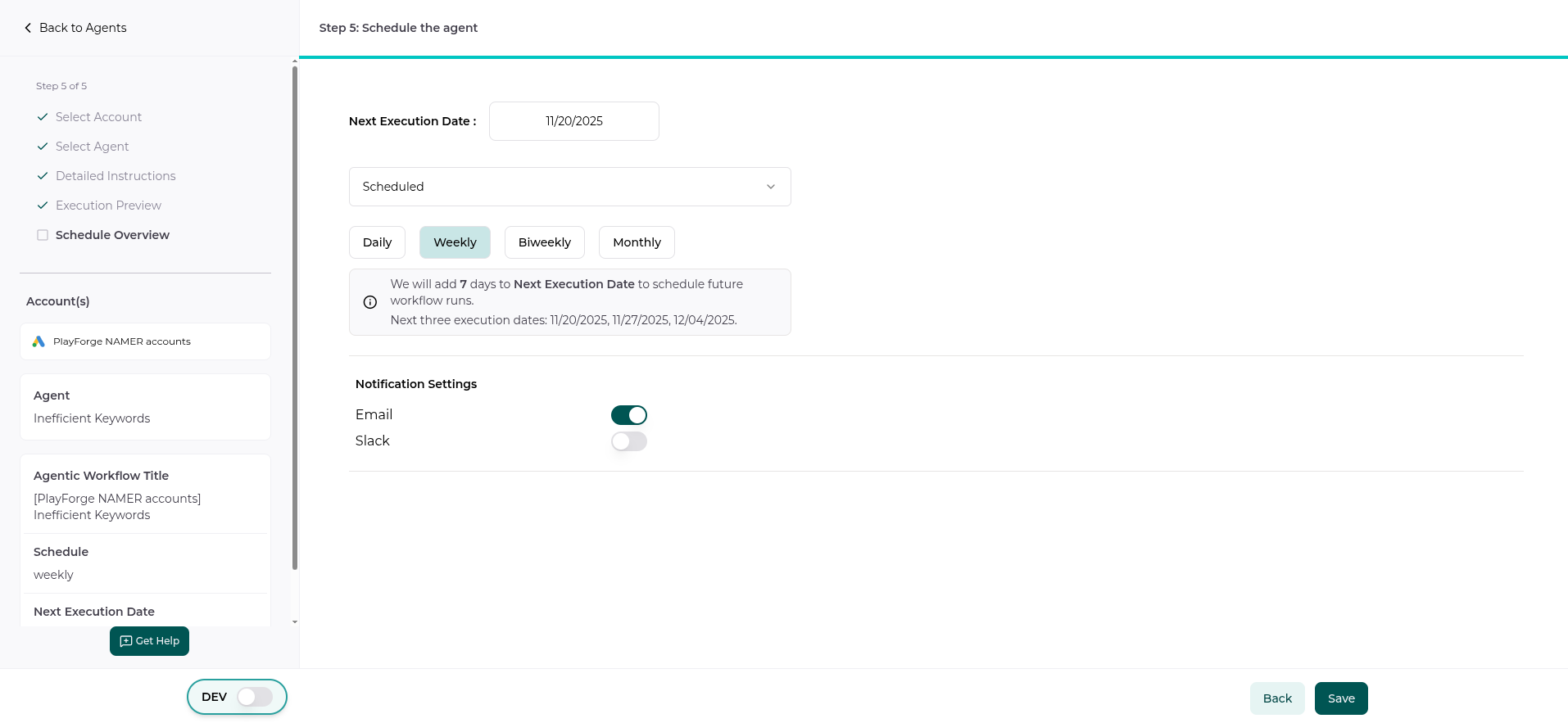
Choose how often your agent should run.
Schedule types
| Schedule | Runs on |
|---|---|
| One-off | Just once, on demand |
| Daily | Every day at the configured time |
| Weekly | Pick one or more weekdays |
| Monthly (first of month) | The 1st of every month |
| Monthly (specific day) | A day-of-month you choose—e.g., the 15th, the 20th, or the last day |
| Custom | Talk to us about cron-like patterns |
For the day-of-month schedule, use the Monthly picker with the split-caret control to pick the exact day. The picker handles short months gracefully—pick the 31st and February will still fire on the 28th/29th, rather than skipping.
The Schedule Help button (the little info icon next to the schedule selector) explains each option with examples and previews the next three execution dates so you can sanity-check the choice.
Notifications
- Email — pick the recipients (CC/BCC supported). External recipients (people outside your organization) are automatically BCC’d to keep their addresses private.
- Slack — choose a channel to deliver the report into. The bot must be a member of the channel; if it isn’t, you’ll be prompted to invite it.
- Both — combine email and Slack.
Click Save to activate your agent. It will now run automatically according to your schedule.
9. Re-running and Refreshing
Once an agent is live, you have two ways to regenerate its report on demand:
- Re-run — re-execute the existing plan/code against the latest data. Use this when the underlying data has been refreshed.
- Fresh re-run — re-generate the plan and the code from scratch using the newest version of the underlying template. Use this when a template has been updated or you want to pull in newer logic that didn’t exist when you first saved the agent.
Both are accessible from the report card’s three-dot menu (see Managing Agents).
Automation Agents help you automate repetitive analysis, deliver consistent insights, and save time. Explore templates, customize steps, and schedule your agents to fit your business needs!