Actioning Google Ads
Actioning turns insights into changes you can push straight to Google Ads — no copy‑pasting between Aliveo and the Google Ads UI. When you ask Aliveo to optimize budgets, bidding, statuses, or keywords, it produces an action table: a clear, side‑by‑side preview of current vs proposed values. You review the rows, adjust anything you like, select what you want, and click Apply — Aliveo then sends those changes to Google on your behalf and reports back which ones succeeded.
This guide covers:
- How action tables work — reviewing and applying changes safely.
- What you can action — budgets, bidding strategy, statuses, and keywords across the Google Ads hierarchy.
- Creating actions on the fly with
/actioningin Analytics Chat. - Building repeatable Custom Actioning Workflows — including campaign/ad‑group creation, cloning, and account structuring.
- Example prompts, from simple one‑liners to multi‑step optimization workflows.
Who can action. Actioning is available only for accounts Aliveo manages for you (not read-only connections), and only to users who have permission:
- Primary users can action by default.
- Secondary users can action only once a primary user grants them permission for that account or platform — see Actioning Permissions.
- Read-only users can never action.
Aliveo checks this up front. If you're not eligible for an account, it still analyzes and recommends — but the Apply controls won't appear.
Inactive accounts. If a Google Ads account can't be reached — because it's been deactivated or disabled on Google's side — Aliveo marks it Inactive, and actioning is unavailable for it until it's re‑enabled in Google Ads.
1. The Action Table
Whenever a chat answer or an agent step proposes changes to your account, Aliveo renders them as an action table. This is the single place where you review and apply changes — it looks and behaves the same whether the table came from a chat, a /actioning request, or a scheduled workflow.
Every action table carries the same instruction at the top:
Select rows, adjust the recommended values if needed, and click Apply.
Each row pairs a proposed value with its current value, and you can adjust any proposed value inline before applying. Select the rows you want, and the Apply button reflects how many you've chosen.
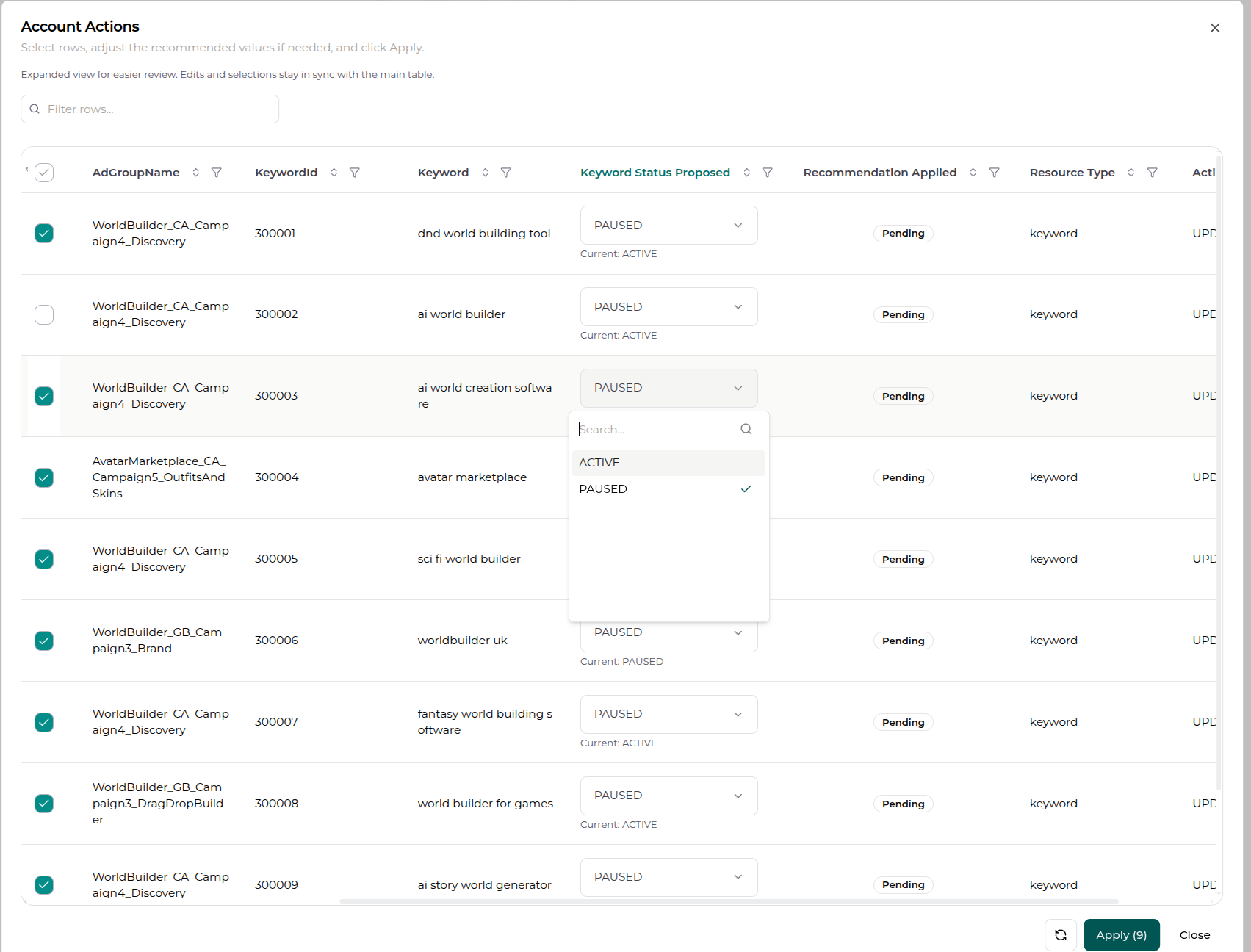
Anatomy of the table
| Element | What it does |
|---|---|
| Row checkboxes | Select exactly which recommendations you want to apply. A header checkbox selects/deselects all eligible rows. |
| Proposed value (editable) | The recommended new value. You can edit it inline before applying — change a budget, switch a status, set a target CPA, etc. |
| Current value | Shown beneath the proposed value (e.g. Current: 50.00) so you always see what you're changing from. |
| Status badge | Pending until applied, then Applied once the change reaches Google successfully. |
| Search / filter / sort | Narrow large tables with the Filter rows… box, per‑column filters, and sortable headers — handy when a table has hundreds of keywords. |
Proposed cells adapt to the field type: amounts like budgets and target CPA use a number input (with valid min/max bounds), while statuses, bidding strategies, and match types use a dropdown of allowed values.
Reviewing → applying
- Review each row — compare the proposed value against the current one.
- Adjust any proposed value inline if you'd like something different from what was recommended.
- Select the rows you want with their checkboxes (or use the header checkbox to take everything).
- Click Apply (N) — the number reflects how many rows you've selected. The button stays disabled until at least one row is selected.
- Aliveo validates the changes, pushes them to Google, and shows the result:
- Actions applied — "Selected recommendations were sent for execution."
- Some actions could not be applied — a few rows failed validation; review them and retry.
- Failed to apply actions — try again, or Refresh the table to reload the latest recommendations.
Applied rows flip to an Applied badge and their checkboxes lock, so you can't double‑apply the same change. You can keep working through the rest of the table, or hit Refresh to pull fresh recommendations against the now‑updated account.
Tip — expand for big tables. Use the maximize button to open the table full‑screen for easier review, and the refresh button to reload recommendations after the account changes.
Built‑in guardrails
Before anything reaches Google, Aliveo runs each row through safety checks so you don't get cryptic API errors:
- No‑op protection — rows where the proposed value equals the current value are skipped.
- Drift protection — if the account changed since the recommendation was generated (the "current" value no longer matches Google), the row is held back rather than overwriting newer data.
- Google rule enforcement — Aliveo pre‑checks Google Ads' constraints (see Things to know) and rejects rows that would violate them, with a plain‑language reason on the row.
- Change log & restore — every applied change is recorded (what changed, from → to, who, and when) in the Action Log, where you can track its impact and restore most changes with one click.
2. What You Can Action
Aliveo can action the most common day‑to‑day optimizations across the Google Ads hierarchy. Campaigns and ad groups can be created and updated; ads can be paused/enabled; keywords and negative keywords can be both created and updated. Shared budgets and portfolio bidding strategies round out the account‑level controls.
Campaigns
| Action | Values |
|---|---|
| Daily budget | Set a new daily spend cap |
| Total (lifetime) budget | Set a campaign total budget (requires start/end dates) |
| Status | ENABLED / PAUSED / REMOVED |
| Bidding strategy | MANUAL_CPC, MAXIMIZE_CLICKS, MAXIMIZE_CONVERSIONS, MAXIMIZE_CONVERSION_VALUE, TARGET_IMPRESSION_SHARE |
| Target CPA | Conversion goal — set on MAXIMIZE_CONVERSIONS, or tune it directly on a campaign already running a standalone TARGET_CPA strategy |
| Target ROAS | Value goal — set on MAXIMIZE_CONVERSION_VALUE, or tune it directly on a campaign already running a standalone TARGET_ROAS strategy |
| CPC ceilings / floors | Optional bid limits that bound an automated strategy |
| Portfolio strategy link | Link the campaign to an existing portfolio bidding strategy |
| EU political advertising | Declare the campaign's EU political‑advertising status (CONTAINS_EU_POLITICAL_ADVERTISING / DOES_NOT_CONTAIN_EU_POLITICAL_ADVERTISING) |
| Schedule | Start / end dates |
| Name & channel type | Rename, set the advertising channel (SEARCH, SHOPPING, PERFORMANCE_MAX, DISPLAY, VIDEO, …) |
Ad Groups
| Action | Values |
|---|---|
| Status | ENABLED / PAUSED / REMOVED |
| Name | Rename the ad group |
| Type | Ad‑group type (e.g. SEARCH_STANDARD, DISPLAY_STANDARD, …) |
Ads
| Action | Values |
|---|---|
| Status | ENABLED / PAUSED / REMOVED — pause underperformers or re‑enable ads |
Keywords
| Action | Values |
|---|---|
| Status | ENABLED / PAUSED / REMOVED (pause/activate) |
| Create keyword | Add new targeting keywords to an ad group — match type EXACT, PHRASE, or BROAD |
Negative Keywords
| Action | Level | Values |
|---|---|---|
| Create negative keyword | Campaign or ad group | Match type EXACT, PHRASE, or BROAD |
| Pause / re‑activate | Campaign or ad group | ENABLED / PAUSED / REMOVED |
Account‑level controls
| Action | What it does |
|---|---|
| Shared budget | Create a shared budget (delivery STANDARD / ACCELERATED) and apply it across campaigns — or update an existing shared budget's amount |
| Portfolio bidding strategy | Create or update a shared strategy — TARGET_CPA, TARGET_ROAS, MAXIMIZE_CLICKS, MAXIMIZE_CONVERSIONS, MAXIMIZE_CONVERSION_VALUE, TARGET_IMPRESSION_SHARE — and link eligible campaigns to it (at creation, or later via a campaign update). Maximize Conversions / Conversion Value portfolio strategies also take optional CPC ceilings/floors. |
| Location & language targeting | Set geo and language targeting (on campaign creation) |
| Callout extensions | Create account‑level callout extensions from the callout text you supply — one asset per callout |
| Conversion tracking | Create a conversion action to track (webpage conversions, DEFAULT category) so campaigns have a conversion to optimize toward |
About "bid". Google Ads is goal‑driven, so you steer spend through bidding strategy rather than a single manual bid: switch a campaign's strategy, set a target CPA (under Maximize Conversions) or target ROAS (under Maximize Conversion Value), and bound it with optional CPC ceilings/floors. Switching to standalone
TARGET_CPA/TARGET_ROASruns through portfolio strategies that campaigns link to — though a campaign already on one of those standalone strategies can have its target and CPC bounds tuned directly. Under any automated strategy Google sets the per‑auction bids for you.
3. /actioning in Analytics Chat
The fastest way to make a one‑off change is right inside a chat. Type / in the chat input to open the mode menu, then pick actioning.
Selecting actioning tells Aliveo you want to change the account, not just analyze it. It then makes the actioning tools available so your request comes back as a ready‑to‑apply action table instead of a plain answer.
You don't always have to type /actioning — Aliveo also recognizes actioning intent from phrasing like "pause…", "reduce the daily budget…", "switch to Maximize Conversions…", "set a target CPA…", or "add … as a negative keyword." Using the slash command simply makes your intent explicit.
Things you can say in actioning mode:
- "Pause all keywords with over $100 spend and zero conversions in the last 30 days."
- "Reduce the daily budget by 20% for my two highest‑CPA Search campaigns."
- "Add
competitor brandas a campaign‑level negative phrase keyword." - "Switch the top 3 campaigns by conversions to Maximize Conversions with a $25 target CPA."
Aliveo finds the relevant entities, builds the action table, and hands it to you to review and apply.
The other chat modes, for reference: info (answer from context without running analysis), brainstorming (strategy and market exploration), web_search (pull in live external info), and create_agent (draft an automation agent). Only actioning produces apply‑ready action tables.
4. Custom Actioning Workflows
For optimizations you want to run repeatedly — or assemble as a multi‑step routine — use a Custom Actioning Workflow agent instead of a one‑off chat. These are blank‑slate agent templates pre‑wired for actioning: you describe the analysis and the change, and the workflow produces an action table each time it runs.
You'll find them in the agent creation flow under Step 2: Template Selection (look in the Optimization Agents group):
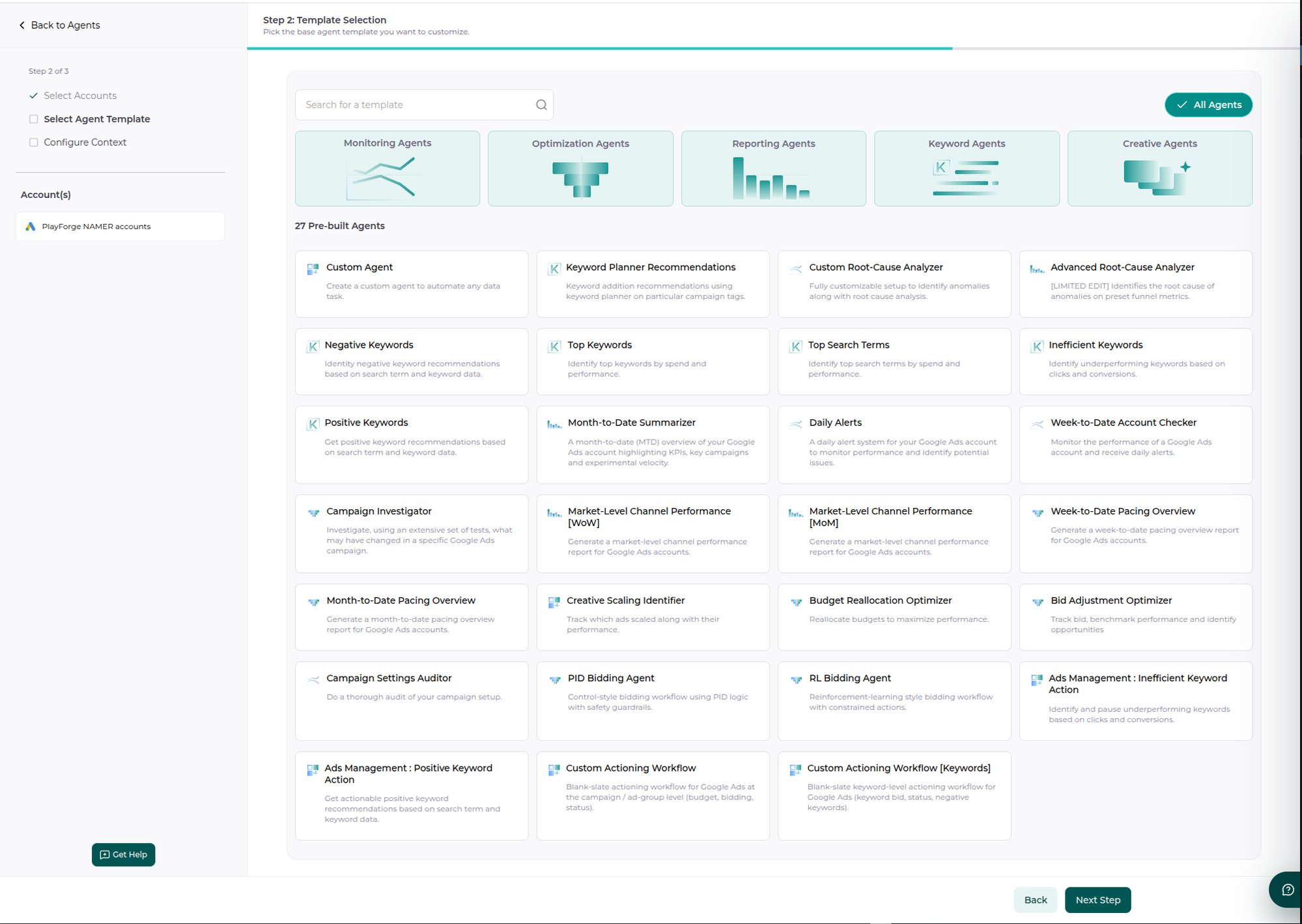
There are two, depending on what you want to action:
Custom Actioning Workflow (Campaign / Ad‑Group)
Blank‑slate actioning workflow for Google Ads at the campaign / ad‑group level (budget, bidding, status).
- Use it for: daily/total budgets, bidding strategy (Maximize Clicks/Conversions/Conversion Value, Target Impression Share, manual CPC), target CPA / target ROAS, and pausing/enabling campaigns and ad groups.
- Set up with: Ad Performance data.
Custom Actioning Workflow [Keywords]
Blank‑slate keyword‑level actioning workflow for Google Ads (keyword bid, status, negative keywords).
- Use it for: keyword status (pause/activate), creating keywords, and negative keyword management at the campaign and ad‑group level.
- Set up with: Keyword data.
How to build one
Both templates drop you into the workflow playground with the actioning tools already switched on, so you assemble the steps yourself:
- Shared Context — define anything common across steps (definitions, thresholds, the time window, e.g. "use the last 30 days").
- Analyze steps — do the data work: pull performance, compute metrics like CPA/ROAS/conversion rate, rank entities, and produce the proposed changes as an action table.
- Summary step — (optional, always last) logically summarize the combined output of the analyze steps.
Because these are actioning workflows, the analyze step that proposes changes renders an action table in the workflow output — you still review and Apply exactly as you would in chat. (Custom Actioning Workflows are set up as one‑off agents so you stay in control of when changes are proposed.)
Building & cloning structure with workflows
Because the live actioning operations include creating campaigns, ad groups, keywords, negatives, shared budgets, and portfolio strategies, a workflow can compose them to build out or clone whole structures — not just tweak existing ones. This is how Aliveo handles:
- Campaign / ad‑group rollout — stand up a new campaign with its ad groups and keywords from a brief or a template. (Ads themselves can be paused/enabled but not created — creative build‑out is a tailored workflow.)
- Cloning — replicate a proven campaign or ad‑group structure (settings, keywords, negatives, targeting) into a new market, product line, or match‑type split — ideal for scaling a winning setup without rebuilding it by hand.
- Account structuring — reorganize keywords into a clean, intentional structure (e.g. brand vs. generic vs. competitor, by match type) and migrate campaigns onto shared budgets and portfolio strategies.
These compose the same review‑and‑apply action tables, so even a full structure rollout stays under your control — nothing changes until you click Apply. For larger, account‑specific structuring we'll tailor the workflow with you — talk to us.
For the general agent‑building mechanics — accounts, data context, grouping, steps, preview, and scheduling — see Creating an Agent.
5. Examples — From Simple to Complex
Every example below is a single natural‑language request. Aliveo handles the analysis (finding the entities, computing the metric, ranking) and produces the action table — you review and apply.
Simple, single‑step actions
These map directly to one type of change:
- Budget — "Set a daily budget of $200 on my top 2 campaigns by conversions."
- Status — "Identify the top 2 ad groups by spend with zero conversions and pause them."
- Bidding strategy — "Switch my top 2 campaigns by conversions to Maximize Conversions with a $25 target CPA."
- Keyword (create) — "Add
running shoesas an exact‑match keyword to theFootwear – Genericad group." - Negative keyword (create) — "Add
freeas a campaign‑level negative phrase‑match keyword across my Brand campaigns." - Negative keyword (status) — "Pause the negative keywords containing
discountin the Holiday campaign."
Metric‑driven optimizations
These combine an analysis with a change — Aliveo computes the metric, ranks, filters, then proposes the action:
- CPA budget trim — "Find the 2 campaigns with the highest cost‑per‑conversion and reduce their daily budget by 25%."
- Wasted‑spend cleanup — "Identify keywords with over $100 spend and zero conversions in the last 30 days, and pause them."
- ROAS budget raise — "Raise the daily budget by 20% on the top 3 campaigns by ROAS over the last 14 days."
Keyword discovery → action
These turn search‑term analysis into keyword changes:
- Harvest winners — "Find the top 5 search terms by conversions that aren't already keywords and add them as exact‑match keywords."
- Block losers — "Find search terms with over $50 spend and no conversions and add them as ad‑group negatives."
- Dedupe — "Find keywords competing across multiple campaigns and ad groups and pause the redundant instances."
Bidding‑strategy automation
- Go automated — "Move campaigns with stable conversion volume to Maximize Conversions with a $30 target CPA."
- Value bidding — "Switch my Shopping campaigns to Maximize Conversion Value with a 400% target ROAS."
- Tune goals — "Lower the target CPA to $20 on campaigns currently beating their goal" / "Raise the target ROAS to 500% on my best‑performing campaigns."
- Portfolio strategy — "Create a Target ROAS portfolio strategy at 400% and link my top 3 Shopping campaigns to it."
Account‑level setup
- Callout extensions — "Create callout extensions for
Free Shipping,24/7 SupportandPrice Match." - Conversion tracking — "Set up conversion tracking for
Newsletter Signup."
Multi‑step workflows you can assemble
In a Custom Actioning Workflow, you can chain several of the above into one routine. A few patterns that work well:
- Weekly keyword hygiene (Keywords template) — (1) Analyze: find high‑spend, zero‑conversion keywords → pause them. (2) Analyze: find high‑converting search terms → add them as exact‑match keywords. (3) Analyze: find irrelevant search terms → add them as ad‑group negatives. (4) Summarize what changed.
- Budget & bidding reallocation (Campaign template) — (1) Analyze: rank campaigns by CPA, trim daily budget on the worst performers. (2) Analyze: rank by ROAS, raise budgets on the best. (3) Analyze: move consistently efficient campaigns to Maximize Conversions with a target CPA. (4) Summarize.
- Structure rollout (Campaign + Keyword) — clone a proven campaign's structure into a new market: create the campaign, ad groups, keywords, negatives, and targeting, then set the budget and strategy.
Each analyze step produces its own action table, so you can review and apply each set of changes independently.
Advanced, tailored workflows
Beyond the self‑serve patterns above, we build custom actioning workflows tuned to your account's strategy and scale. If any of these sound like what you need, talk to us and we'll set them up for you:
- Sophisticated bid & budget management — rule‑based and goal‑seeking budget and target‑CPA/ROAS logic that reacts to efficiency, ROAS, and conversion trends rather than simple top‑N rules.
- Pacing — keep daily/total spend on track to budget targets across the period, with proposed budget adjustments when an account is over‑ or under‑pacing.
- Keyword deduping — detect duplicate or overlapping keywords competing across campaigns and ad groups, and consolidate them so you stop bidding against yourself.
- Account structuring & cloning — organize keywords into a clean, intentional structure (discovery vs. brand vs. competitor, by match type), clone proven campaigns into new markets, and migrate campaigns onto shared budgets and portfolio strategies.
These run as the same review‑and‑apply action tables, so even sophisticated logic stays fully under your control — nothing changes until you click Apply.
6. Things to Know — Google's Rules
Aliveo enforces Google Ads' own constraints up front, so invalid rows are caught before they're sent. If you see a row rejected with a reason, it's usually one of these:
Budgets
- A campaign uses either a daily budget or a total budget — not both. Aliveo won't change one while the other is in use.
- Total (lifetime) budgets need start and end dates on the campaign.
- Shared budgets are managed centrally — if a campaign draws on a shared budget, change the shared budget itself rather than the campaign's budget field.
Bidding strategy & goals
- Campaign‑level strategies you can switch to:
MANUAL_CPC,MAXIMIZE_CLICKS,MAXIMIZE_CONVERSIONS,MAXIMIZE_CONVERSION_VALUE,TARGET_IMPRESSION_SHARE. - Target CPA is set as a goal on
MAXIMIZE_CONVERSIONS; target ROAS onMAXIMIZE_CONVERSION_VALUE. Switching to standaloneTARGET_CPA/TARGET_ROASruns through portfolio strategies that campaigns link to; campaigns already on one of those standalone strategies can have their target tuned directly. - Under automated strategies, Google sets the bids — you steer with goals (target CPA/ROAS) and optional CPC ceilings/floors, not a manual per‑keyword bid.
- Target Impression Share needs at least one of its settings in the change — the target location (e.g. top of page), the location fraction, or a max‑CPC ceiling. (Creating a Target Impression Share portfolio strategy requires the location and location fraction; the max‑CPC ceiling is optional.)
- A campaign already on a portfolio strategy — change the portfolio strategy itself, not the campaign's strategy field. A campaign already using a portfolio strategy can't be re‑linked to another.
Keywords
- New keywords need text, a match type (
EXACT/PHRASE/BROAD), an initial status, and whether they're a negative — phrase the request naturally and Aliveo fills these in. - Text and match type are fixed after creation — you can pause/activate a keyword, but to change its text or match type, recreate it.
- Negative keywords can be added at the campaign or ad‑group level.
Status
ENABLED/PAUSED/REMOVEDapply across campaigns, ad groups, ads, and keywords. (Aliveo maps everyday phrasing — "active" →ENABLED, "inactive"/"disabled" →PAUSED.)REMOVEDis permanent — it deletes the entity from Google Ads rather than switching it off, and a removed entity can't be re‑enabled or restored. PreferPAUSEDunless you're certain.
These guardrails mean you can safely propose broad changes; Aliveo simply skips the rows Google wouldn't accept and tells you why.
That's actioning — analyze, review, and apply Google Ads changes without leaving Aliveo. Start with a quick /actioning request in chat, and graduate to a Custom Actioning Workflow once you find an optimization worth repeating.