Budget & Bid Allocation
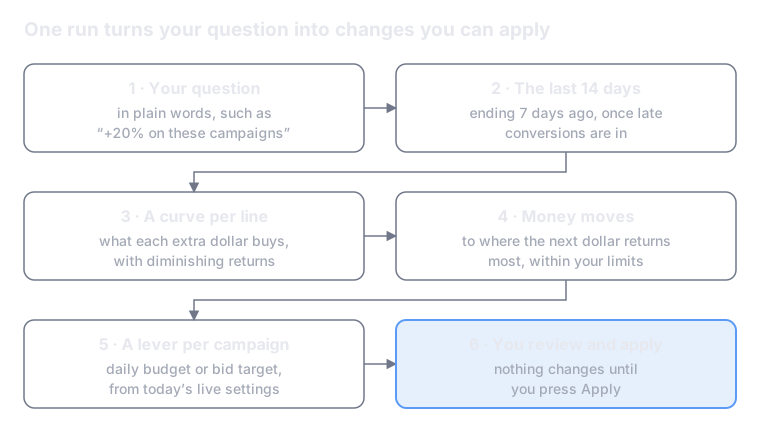
Budget & Bid Allocation answers the question media teams ask every week: where should the money go, and how do we get it there? Ask in plain words and it recommends how to split spend across channels, countries or campaigns. At campaign level on Google Ads it also says which daily budget or bid target to change, in a table you can review and apply.
Nothing changes in your accounts until you press Apply.
What It Answers
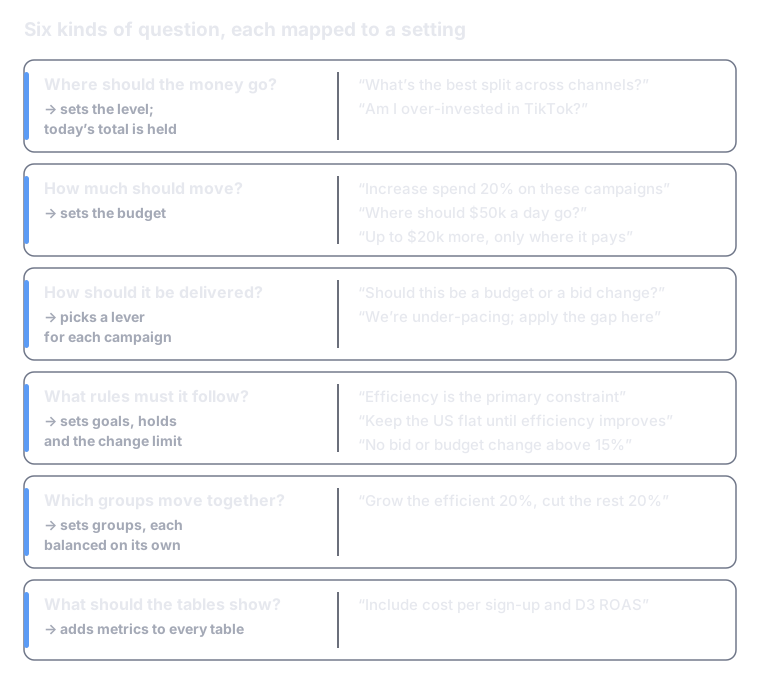
Combine as many as you like in one request. It is not for forecasts with no decision attached, for whether a fixed budget will be spent by month end, or for creative and audience questions.
Pre-requisites
- A connected ad account — with actioning access, for tables you can apply.
- The outcome you optimise — conversions, revenue, or LTV from a connected dataset.
- Your budget plan — as a Knowledge Document, if a step measures pacing against it.
How It Works
How Each Campaign's Lever Is Chosen
Whether spend goes up or down plays no part; only these three questions do.
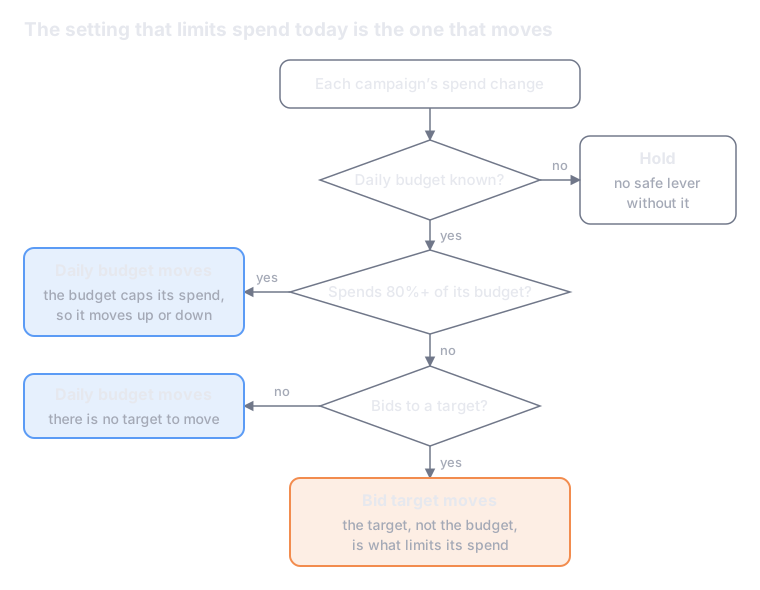
A target means Target CPA, Target ROAS, or Maximize with a target set. Shared budgets, manager-owned bid strategies and portfolios that reach outside the request are always held.
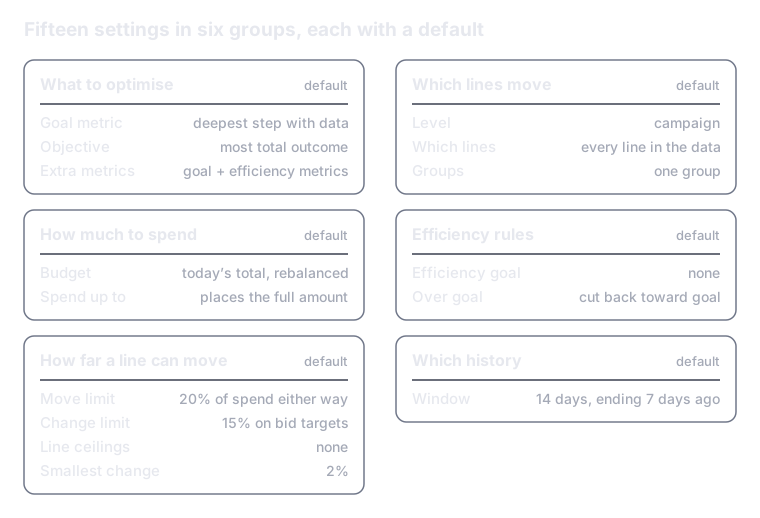
Settings and Defaults
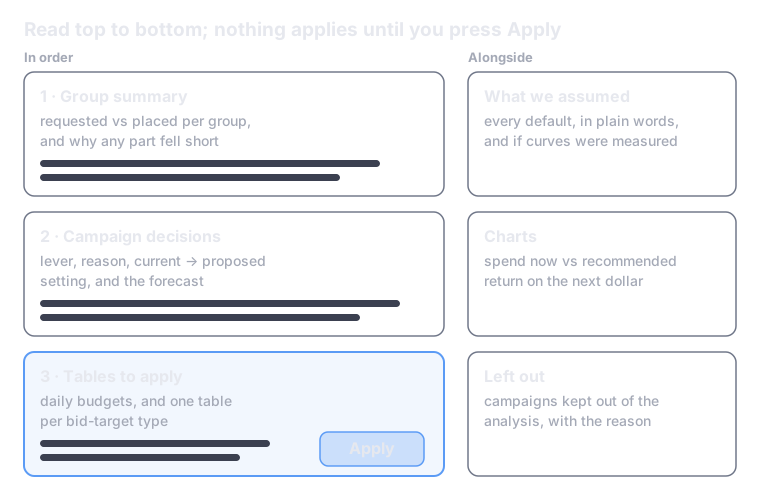
Your wording sets these; anything you leave out takes its default, and every answer ends with a What we assumed list.
Example: A Weekly Efficiency-First Agent
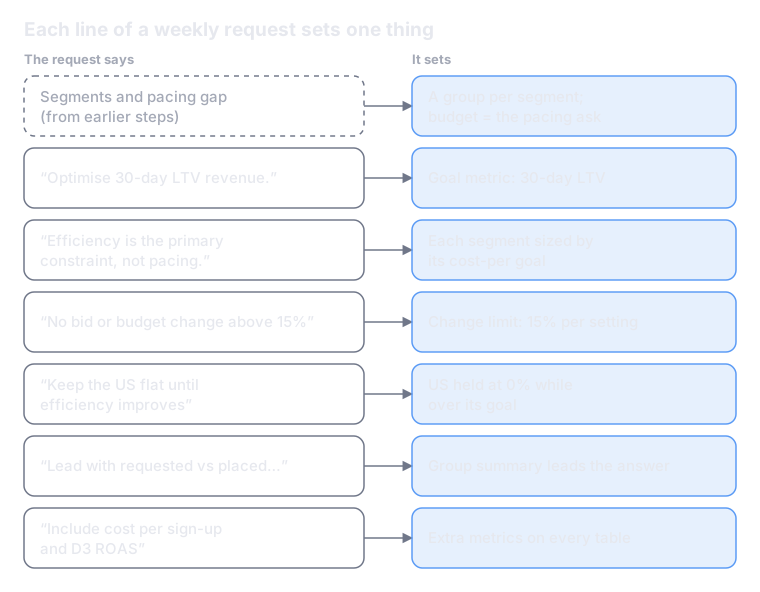
A typical weekly bid-and-budget step, line by line. The segments, their goals and the pacing gap come from the steps before it.
What You Get Back
- A bid target moves spend further than its own change. A 15% higher target CPA can be forecast at about 40% more spend.
- "Assumed, not measured" means a standard curve. Read that forecast as a direction and size.
- A campaign that can't move safely is listed with the reason, never silently dropped.
- Tables to apply cover Google Ads. Other platforms show the recommendation read-only for now; see Actioning Google Ads for how Apply works.
Running It
- Ask your budget question in Analytics Chat or in an Automation Agent step. Type
/budget_allocationto call it explicitly. - Tag any dataset the step needs, such as your LTV data.
- Read the group summary and the campaign decisions.
- Open the tables to apply, adjust any value, and press Apply.
- For a recurring decision, schedule the agent weekly.
Tips
- Name the exact budget line. If your plan document has several lines for one channel, say which one pacing uses; otherwise runs can read different lines and the pacing gap swings.
- Build segments once. Assign campaigns to segments in an earlier step, and let the allocation reuse that table.
- State limits as rules. "No bid or budget change above 15%" is enforced on every setting, so there is no arithmetic to spell out in the prompt.