Actioning Snapchat Ads
Actioning turns insights into changes you can push straight to Snapchat Ads — no copy‑pasting between Aliveo and Snapchat Ads Manager. When you ask Aliveo to optimize budgets, bids, bid strategies, pacing, or statuses across campaigns, ad squads, and ads, it produces an action table: a clear, side‑by‑side preview of current vs proposed values. You review the rows, adjust anything you like, select what you want, and click Apply — Aliveo then sends those changes to Snapchat on your behalf and reports back which ones succeeded.
This guide covers:
- How action tables work — reviewing and applying changes safely.
- What you can action — budgets, bids, bid strategies, pacing, and statuses across campaigns, ad squads, and ads.
- Creating actions on the fly with
/actioningin Analytics Chat. - Building repeatable Custom Actioning Workflows.
- Example prompts, from simple one‑liners to multi‑step optimization workflows.
Who can action. Actioning is available only for accounts Aliveo manages for you (not read-only connections), and only to users who have permission:
- Primary users can action by default.
- Secondary users can action only once a primary user grants them permission for that account or platform — see Actioning Permissions.
- Read-only users can never action.
Aliveo checks this up front. If you're not eligible for an account, it still analyzes and recommends — but the Apply controls won't appear.
A note on names. Snapchat calls the level between a campaign and an ad an ad squad. Aliveo's tables label the same thing ad group in column names (
ad_group_name,adgroup_bid_proposed, …) so it lines up with the other platforms — they're the same entity, and both terms are used interchangeably below.
1. The Action Table
Whenever a chat answer or an agent step proposes changes to your account, Aliveo renders them as an action table. This is the single place where you review and apply changes — it looks and behaves the same whether the table came from a chat, a /actioning request, or a scheduled workflow.
Every action table carries the same instruction at the top:
Select rows, adjust the recommended values if needed, and click Apply.
Each row pairs a proposed value with its current value, and you can adjust any proposed value inline before applying. Select the rows you want, and the Apply button reflects how many you've chosen.
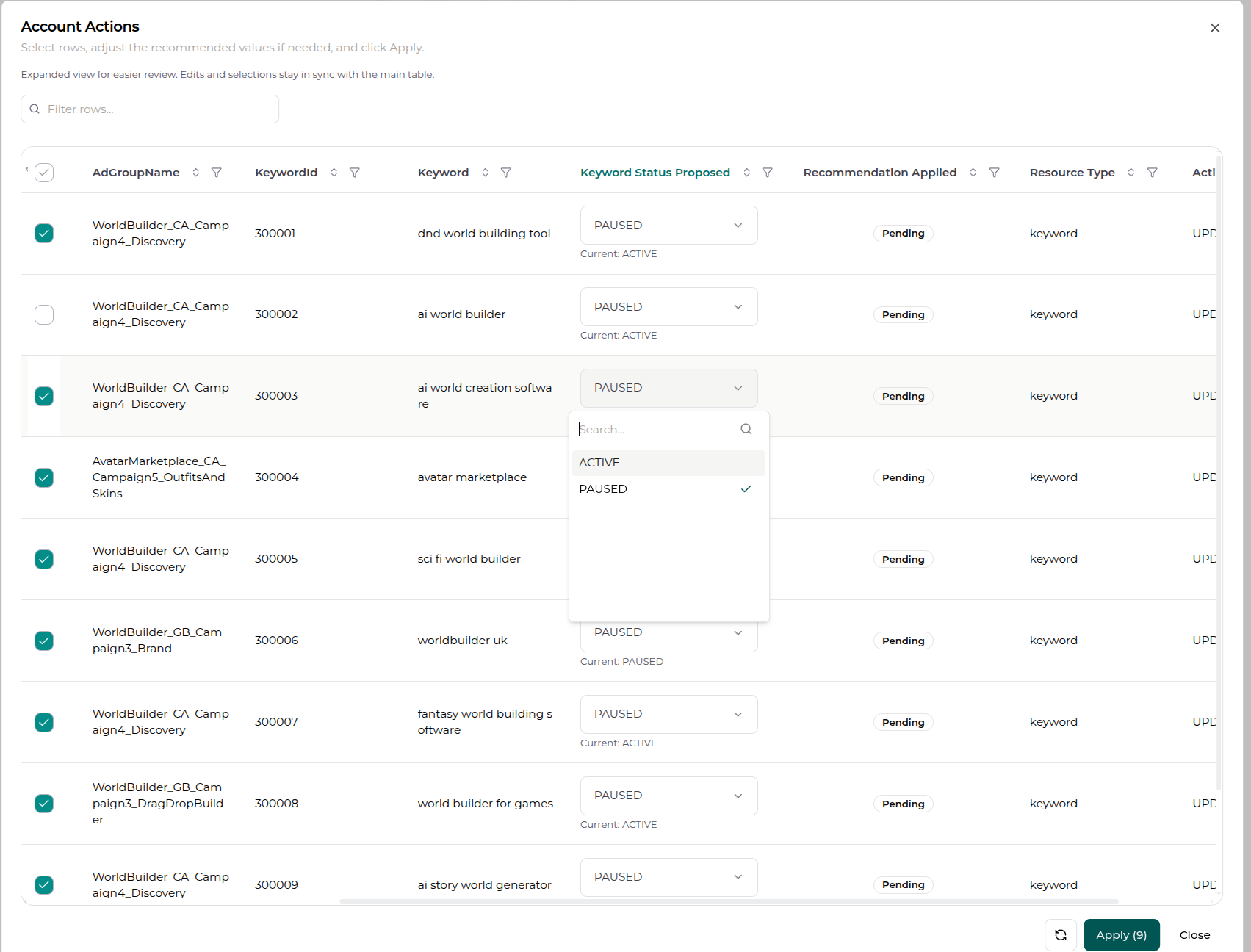
Anatomy of the table
| Element | What it does |
|---|---|
| Row checkboxes | Select exactly which recommendations you want to apply. A header checkbox selects/deselects all eligible rows. |
| Proposed value (editable) | The recommended new value. You can edit it inline before applying — change a bid, round a budget, switch a status, etc. |
| Current value | Shown beneath the proposed value (e.g. Current: 4.58) so you always see what you're changing from. |
| Status badge | Pending until applied, then Applied once the change reaches Snapchat successfully. |
| Search / filter / sort | Narrow large tables with the Filter rows… box, per‑column filters, and sortable headers. |
Proposed cells adapt to the field type: amounts like bids and budgets use a number input, while statuses, bid strategies, and pacing types use a dropdown of allowed values.
Reviewing → applying
- Review each row — compare the proposed value against the current one.
- Adjust any proposed value inline if you'd like something different from what was recommended.
- Select the rows you want with their checkboxes (or use the header checkbox to take everything).
- Click Apply (N) — the number reflects how many rows you've selected. The button stays disabled until at least one row is selected.
- Aliveo validates the changes, pushes them to Snapchat, and shows the result:
- Actions applied — "Selected recommendations were sent for execution."
- Some actions could not be applied — a few rows failed validation; review them and retry.
- Failed to apply actions — try again, or Refresh the table to reload the latest recommendations.
Applied rows flip to an Applied badge and their checkboxes lock, so you can't double‑apply the same change.
Built‑in guardrails
Before anything reaches Snapchat, Aliveo runs each row through safety checks so you don't get cryptic API errors:
- No‑op protection — rows where the proposed value equals the current value are skipped.
- Drift protection — if the account changed since the recommendation was generated (the "current" value no longer matches Snapchat), the row is held back rather than overwriting newer data.
- Snapchat rule enforcement — Aliveo pre‑checks Snapchat's constraints (see Things to know) and rejects rows that would violate them, with a plain‑language reason on the row.
- Accept‑then‑ignore detection — Snapchat reports success for some writes it quietly doesn't apply. Aliveo re‑reads what Snapchat actually stored and fails the row if the value didn't move, rather than telling you a change landed when it didn't.
- Change log & restore — every applied change is recorded (what changed, from → to, who, and when) in the Action Log, where you can track its impact and restore most changes with one click.
2. What You Can Action
Campaigns, ad squads, and ads can all be updated, and all three can also be created.
Campaigns
| Action | Values |
|---|---|
| Daily budget | Set a new daily spend cap (in the account's currency) |
| Lifetime spend cap | Set a campaign‑level lifetime cap |
| Status | ACTIVE / PAUSED |
Ad Squads (ad groups)
| Action | Values |
|---|---|
| Daily budget | For ad squads created on a daily budget |
| Lifetime budget | For ad squads created on a lifetime budget |
| Bid | The max bid, for ad squads bidding manually |
| Bid strategy | AUTO_BID (Snapchat bids for you) / LOWEST_COST_WITH_MAX_BID (you set a max bid) |
| Pacing type | STANDARD (spend evenly) / ACCELERATED (spend as fast as possible) |
| Status | ACTIVE / PAUSED |
Ads
| Action | Values |
|---|---|
| Status | ACTIVE / PAUSED — pause underperforming ads or re‑enable them |
Creating entities
| Create | What you provide |
|---|---|
| Campaign | An objective (e.g. APP_INSTALL, AWARENESS, WEB_CONVERSION, TRAFFIC, SALES) and a start time. Name and start time are filled in with sensible defaults you can edit in the table. |
| Ad squad | The parent campaign, an optimization goal (IMPRESSIONS, SWIPES, or LANDING_PAGE_VIEW), a bid strategy, and one budget (daily or lifetime). |
| Ad | The parent ad squad and an existing creative to run. |
Create tables arrive filled in — a generated name, a PAUSED status, a start time and a budget — so you can adjust what you care about and apply, rather than supplying every field up front. New entities are created paused by default, so nothing starts spending until you turn it on.
3. /actioning in Analytics Chat
The fastest way to make a one‑off change is right inside a chat. Type / in the chat input to open the mode menu, then pick actioning.
Selecting actioning tells Aliveo you want to change the account, not just analyze it. It then makes the actioning tools available so your request comes back as a ready‑to‑apply action table instead of a plain answer.
You don't always have to type /actioning — Aliveo also recognizes actioning intent from phrasing like "pause…", "reduce the daily budget…", or "lower the bid…". Using the slash command simply makes your intent explicit.
Things you can say in actioning mode:
- "Pause the 2 Snapchat ad squads with the highest cost per swipe."
- "Reduce the daily budget by 20% on campaigns spending over $50 a day."
- "Lower the bid by 15% on the 4 ad squads with the highest cost per swipe."
- "Switch the ad squads with the worst cost per install to automatic bidding."
Aliveo finds the relevant entities, builds the action table, and hands it to you to review and apply.
The other chat modes, for reference: info (answer from context without running analysis), brainstorming (strategy and market exploration), web_search (pull in live external info), and create_agent (draft an automation agent). Only actioning produces apply‑ready action tables.
4. Custom Actioning Workflows
For optimizations you want to run repeatedly — or assemble as a multi‑step routine — use a Custom Actioning Workflow agent instead of a one‑off chat. This is a blank‑slate agent template pre‑wired for actioning: you describe the analysis and the change, and the workflow produces an action table each time it runs.
You'll find it in the agent creation flow under Step 2: Template Selection (look in the Optimization Agents group).
Custom Actioning Workflow
Blank‑slate actioning workflow for Snapchat Ads at the campaign / ad squad / ad level (budget, bid, bid strategy, pacing, status).
- Use it for: daily and lifetime budgets, ad‑squad bids, bid strategy switches, pacing changes, and pausing/enabling campaigns, ad squads, and ads.
- Set up with: Ad Performance data.
How to build one
The template drops you into the workflow playground with the actioning tools already switched on, so you assemble the steps yourself:
- Shared Context — define anything common across steps (definitions, thresholds, the time window, e.g. "use the last 30 days").
- Analyze steps — do the data work: pull performance, compute metrics like cost per swipe or cost per install, rank entities, and produce the proposed changes as an action table.
- Summary step — (optional, always last) logically summarize the combined output of the analyze steps.
Because this is an actioning workflow, the analyze step that proposes changes renders an action table in the workflow output — you still review and Apply exactly as you would in chat. (Custom Actioning Workflows are set up as one‑off agents so you stay in control of when changes are proposed.)
For the general agent‑building mechanics — accounts, data context, grouping, steps, preview, and scheduling — see Creating an Agent.
5. Examples — From Simple to Complex
Every example below is a single natural‑language request. Aliveo handles the analysis (finding the entities, computing the metric, ranking) and produces the action table — you review and apply.
Simple, single‑step actions
- Budget — "Set the daily budget to $100 on my top 2 campaigns by installs."
- Status (campaign) — "Pause the 2 campaigns with the highest spend and fewest installs."
- Status (ad) — "Pause the ads with zero installs and more than $50 spend in the last 30 days."
- Bid — "Lower the bid by 15% on the ad squads with the highest cost per swipe."
- Pacing — "Switch my top‑spending ad squad to accelerated pacing."
Metric‑driven optimizations
These combine an analysis with a change — Aliveo computes the metric, ranks, filters, then proposes the action:
- CPI guardrail — "Reduce the daily budget by 20% on ad squads with a cost per install above $5."
- Wasted‑spend cleanup — "Find ads with over $25 spend and zero installs in the last 30 days and pause them."
- Swipe efficiency — "Raise the bid by 10% on the 3 ad squads with the lowest cost per swipe."
Bidding automation
- Hand control to Snapchat — "Move the ad squads with erratic cost per install back to automatic bidding."
- Take control back — "Switch my highest‑spending ad squads to a manual max bid of $4."
Multi‑step workflows you can assemble
In a Custom Actioning Workflow, you can chain several of the above into one routine:
- Weekly efficiency pass — (1) Analyze: rank ad squads by cost per install, trim budgets on the worst. (2) Analyze: rank by install volume at target CPI, raise budgets on the best. (3) Analyze: pause ads with sustained spend and no installs. (4) Summarize what changed.
- Delivery tune‑up — (1) Analyze: find ad squads under‑delivering against budget and move them to accelerated pacing. (2) Analyze: find ad squads overspending on weak audiences and lower their bids. (3) Summarize.
Each analyze step produces its own action table, so you can review and apply each set of changes independently.
Advanced, tailored workflows
Beyond the self‑serve patterns above, we build custom actioning workflows tuned to your account's strategy and scale. If any of these sound like what you need, talk to us and we'll set them up for you:
- Sophisticated bid & budget management — goal‑seeking bid/budget logic that reacts to CPI, CPA, and swipe‑rate trends rather than simple top‑N rules.
- Pacing — keep daily spend on track to budget targets across the flight, with proposed adjustments when an account is over‑ or under‑pacing.
- Creative rotation — retire fatiguing creatives and promote fresh ones as their performance shifts.
These run as the same review‑and‑apply action tables, so even sophisticated logic stays fully under your control — nothing changes until you click Apply.
6. Things to Know — Snapchat's Rules
Aliveo enforces Snapchat's own constraints up front, so invalid rows are caught before they're sent. If you see a row rejected with a reason, it's usually one of these:
Statuses
- Only
ACTIVE/PAUSEDcan be set. Everyday phrasing like "enable", "disable", or "turn off" is normalized to the right value automatically.
Budgets
- An ad squad runs on either a daily budget or a lifetime budget — never both, and which one is fixed when the ad squad is created. Aliveo only proposes the mode a given ad squad actually uses; you can't switch an existing squad from one to the other.
- A lifetime budget needs a start and an end time, and must cover at least $5 per day of that window.
- Amounts are in the account's currency and can't be negative.
Bidding
- A bid and automatic bidding are mutually exclusive. You can't set a bid while the strategy is
AUTO_BID, and switching toLOWEST_COST_WITH_MAX_BIDrequires a bid in the same change — an auto‑bidding ad squad has no bid to inherit. - Leave the bid blank on an auto‑bidding ad squad. An empty bid cell is treated as "no bid", not as a bid of zero.
Pacing
ACCELERATEDpacing requires a manual bid strategy. An auto‑bidding ad squad has to move toLOWEST_COST_WITH_MAX_BIDfirst.
Set once, at creation
- A campaign's objective, an ad squad's optimization goal, and an ad's creative are fixed when the entity is created and can't be changed afterwards. To use a different objective, goal, or creative, create a new entity.
- A new ad needs an existing creative — Aliveo attaches a creative that's already in the account rather than uploading media for you.
These guardrails mean you can safely propose broad changes; Aliveo simply skips the rows Snapchat wouldn't accept and tells you why.
That's actioning — analyze, review, and apply Snapchat Ads changes without leaving Aliveo. Start with a quick /actioning request in chat, and graduate to a Custom Actioning Workflow once you find an optimization worth repeating.